Workitem Link Validate
Keep your work item hierarchy honest — automatically.
Workitem Link Validate stops bad parent/child links before they ever get saved. The moment someone tries to link a work item to the wrong kind of parent — a Task straight under an Epic, a Bug under a Feature that shouldn't allow it, anything that doesn't match your process — the Save button locks and a clear, specific error tells them exactly what's wrong. No more scrubbing broken rollups, mis-scoped PI Planning boards, or portfolio dashboards, doubting whether the numbers are right.
It works out of the box on Agile, Basic, Scrum, and CMMI projects, and it automatically learns the hierarchy of Inherited processes with custom work item types — no configuration file to maintain by hand. Runs on Azure DevOps Services and on Azure DevOps Server 2022.1 on-premises.
Why teams install this
- Rollups you can trust. Portfolio and PI Planning views are only as good as the links underneath them. This stops the bad links from ever landing.
- Zero setup to get value. Install it and the four standard process hierarchies (Agile, Basic, Scrum, CMMI) are enforced immediately.
- Adapts to your process. Custom Inherited-process work item types are detected live from your project's actual backlog configuration — never a hardcoded list.
- Per-project control, not an org-wide hammer. Every project gets its own hierarchy, its own strict/permissive mode, and its own on/off switch. One project's configuration never leaks into another's.
- Nothing breaks retroactively. Links that existed before you installed the extension, or before you changed a rule, are never re-validated — only links added or changed in the current editing session can block Save.
- Full audit trail. Every configuration change is attributed (who, when), with one-click revert.
- See where you already stand. The built-in Traceability dashboard shows what percentage of each work item type is correctly linked right now — not just what gets blocked going forward — with one click through to exactly the items that need fixing.
What it checks
Only Parent/Child (hierarchy) links — Related, Predecessor/Successor, Duplicate, and Tests links are never touched. Validation runs live on the Work Item Form as people add or remove links; it does not intercept the REST API, bulk edit, or Boards drag-and-drop reparenting (see Scope and limitations).
How it decides what's allowed
Each project resolves its rules in this order, so there's always a sensible answer and it never hard-fails:
- Is the extension enabled for this project? If a Project Administrator has switched it off, every link is allowed — nothing below applies.
- Has an admin saved a custom hierarchy? Their override wins.
- Is there a freshly detected hierarchy from the project's live backlog configuration (picked up automatically whenever the admin hub is opened)?
- Otherwise, the built-in default for the project's process (Agile, Basic, Scrum, or CMMI) is used.
- Still nothing? The extension allows the link rather than blocking work over a rule it couldn't determine.
Every project also has a mode:
| Mode |
Behavior |
| Permissive (default for new projects) |
Only pairings between two work item types the hierarchy already recognizes are enforced. A pairing involving a genuinely custom/unmapped type is allowed until you review it. |
| Strict |
Deny-by-default. A parent/child pairing must be explicitly listed, or it's blocked. |
New projects start in permissive mode so installing the extension never blocks work you haven't reviewed yet — a one-time banner in the admin hub nudges you to confirm the detected hierarchy and switch to strict when you're ready.
Getting started
- Install the extension into your organization (or sideload the
.vsix on Server 2022.1 — see the repository README for both install paths). Every project starts disabled — installing the extension never affects a project until you opt it in.
- Open the project you want to protect and go to Project Settings → Link Validate.
- Switch the Enabled / Disabled toggle at the top of the page to Enabled.
- Review the hierarchy table — it's pre-populated from your process automatically. Adjust it if you need to, using the live-populated Parent/Child pickers (never free text, so a typo can't silently create a no-op rule).
- When you're happy with it, switch Mode from Permissive to Strict to start enforcing it fully.
- That's it — every work item form in this project now validates hierarchy links live.
Only Project Administrators can change these settings; everyone else can view the active hierarchy read-only, so a blocked link always comes with an explanation of why.
Walkthrough: an Agile project
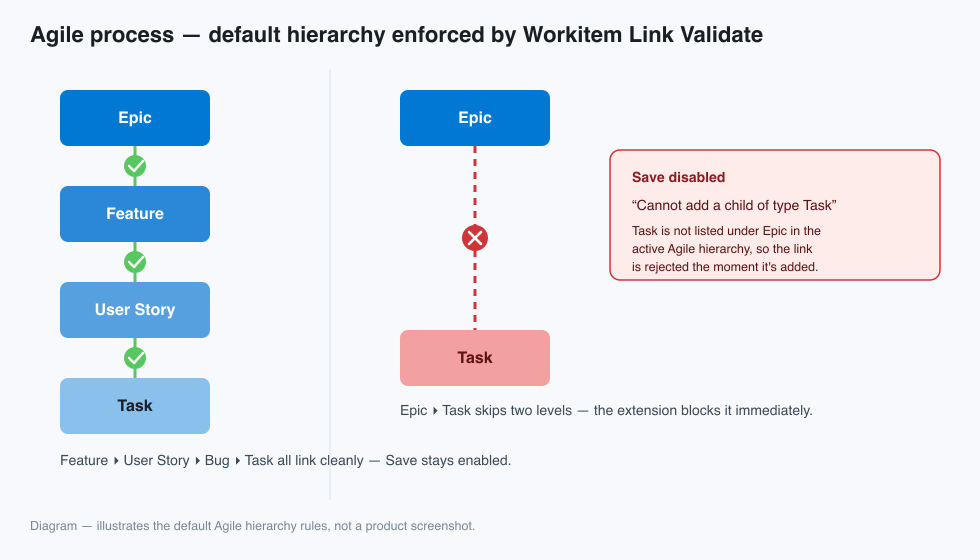
A newly created Agile-process project ships with this hierarchy enforced automatically — no setup required:
Epic
 └─ Feature
     └─ User Story ── Bug
         └─ Task
(Bug can sit under either Feature or User Story, and can itself parent a Task — matching Azure DevOps' own Agile backlog configuration.)
Try it:
- Open an Epic's work item form and choose Add link → Existing item → Child.
- Search for a Task and add it.
- The extension immediately shows: "Cannot add a child of type Task" and Save is disabled — a Task can't sit directly under an Epic in the Agile hierarchy.
- Remove that link and add a Feature as the child instead.
- The error clears and Save re-enables right away.
- Open the new Feature, add a User Story as its child, then open that User Story and add a Task.
- Both links validate cleanly — this is exactly the chain the default Agile hierarchy expects.
- Now try adding a Bug as a child of that Feature.
- Also allowed — Bug is a recognized child of both Feature and User Story out of the box.
If your team customizes the Agile process — say, adding a "Risk" work item type under Epic — open Project Settings → Link Validate, click Refresh from process template, and the new type shows up in the picker automatically. Check the box, save, and it's enforced from that point on.
Traceability dashboard
Every project gets a Traceability page under Boards (visible to everyone, not just admins — it's a report). It answers the question this whole extension exists for: how much of our backlog is actually linked correctly, right now?
- One big overall percentage for the project, plus a card per work item type — Epic, Feature, User Story, Task, Bug, or whatever your process defines — each with its own percentage and a
traceable / total count.
- Types that sit at the top of the hierarchy (Epic, in the default maps) get their own "root-level" section instead of a percentage — there's no parent to check, so they're never counted against the score.
- Click any card to jump straight to the work items behind the number: "View N untraceable" opens a query of exactly the items of that type missing a valid parent, and "View all N" opens every item of that type — both as a personal query, one click away, no query-building required.
- Because it's computed against your hierarchy's own rules — not just "what would currently get blocked" — it's honest even in a project that's still in permissive mode or has the extension switched off: you can see exactly how much cleanup a switch to strict mode would actually require, before you flip it.
Scope and limitations
This is a client-side control on the Work Item Form web UI. It does not (and structurally cannot) intercept:
- links created through the REST API or bulk edit,
- Boards drag-and-drop reparenting,
- migration/import tooling, or
- non-web clients.
For teams that need coverage of those paths too, pair this with a scheduled audit script against the same REST APIs (see the repository README for the pattern) — this extension focuses on stopping bad links at the moment someone would create one by hand.
Compatibility
Azure DevOps Services (cloud) and Azure DevOps Server 2022.1 (on-premises). Supported browsers: current Edge, Chrome, and Firefox, plus Safari 14.1+.

