Free for a limited time!!! Get your free Automatic Children license now and unlock the plan that fits your Azure DevOps organization.
Automatic Children is an Azure DevOps extension that creates child work items from a work item's context menu.
You define rules (E.g. If the work item = Bug, then create these tasks) and optional cascades. This extension support the execution from multiple work items as well as parent placeholders so children inherit parent data.
Why use it
If you repeat the same work item structures again and again, this extension is for you. It’s built for people who want to save time: configure once, then create many children—or entire hierarchies—with one action. The UI is clear and fast, and you stay inside Azure DevOps.
Quick Walkthrough
Get from zero to creating child work items in three steps.
1. Open settings
Go to Project Settings > Automatic Children and open the General tab. This is where you define when and what to create.
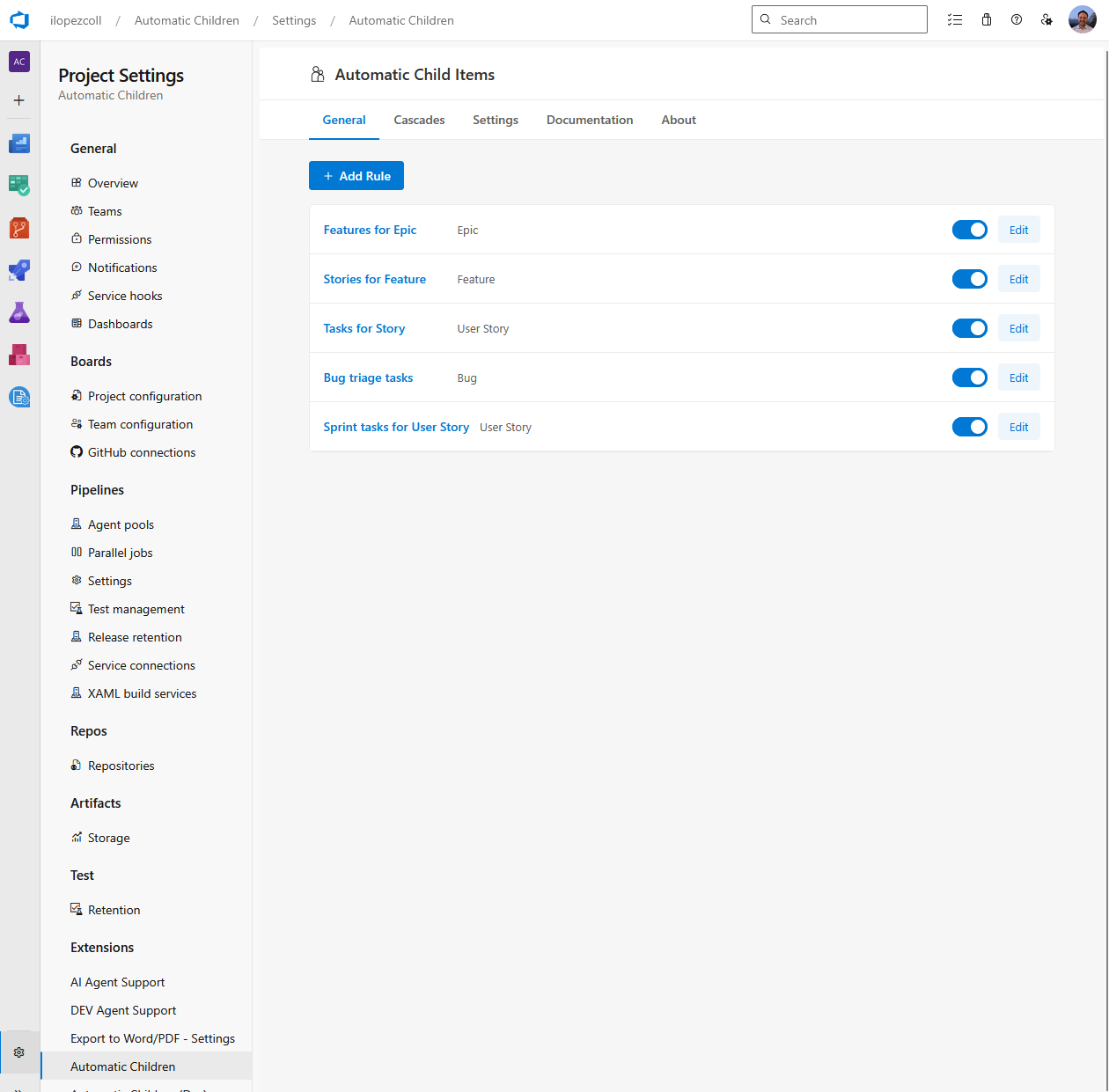
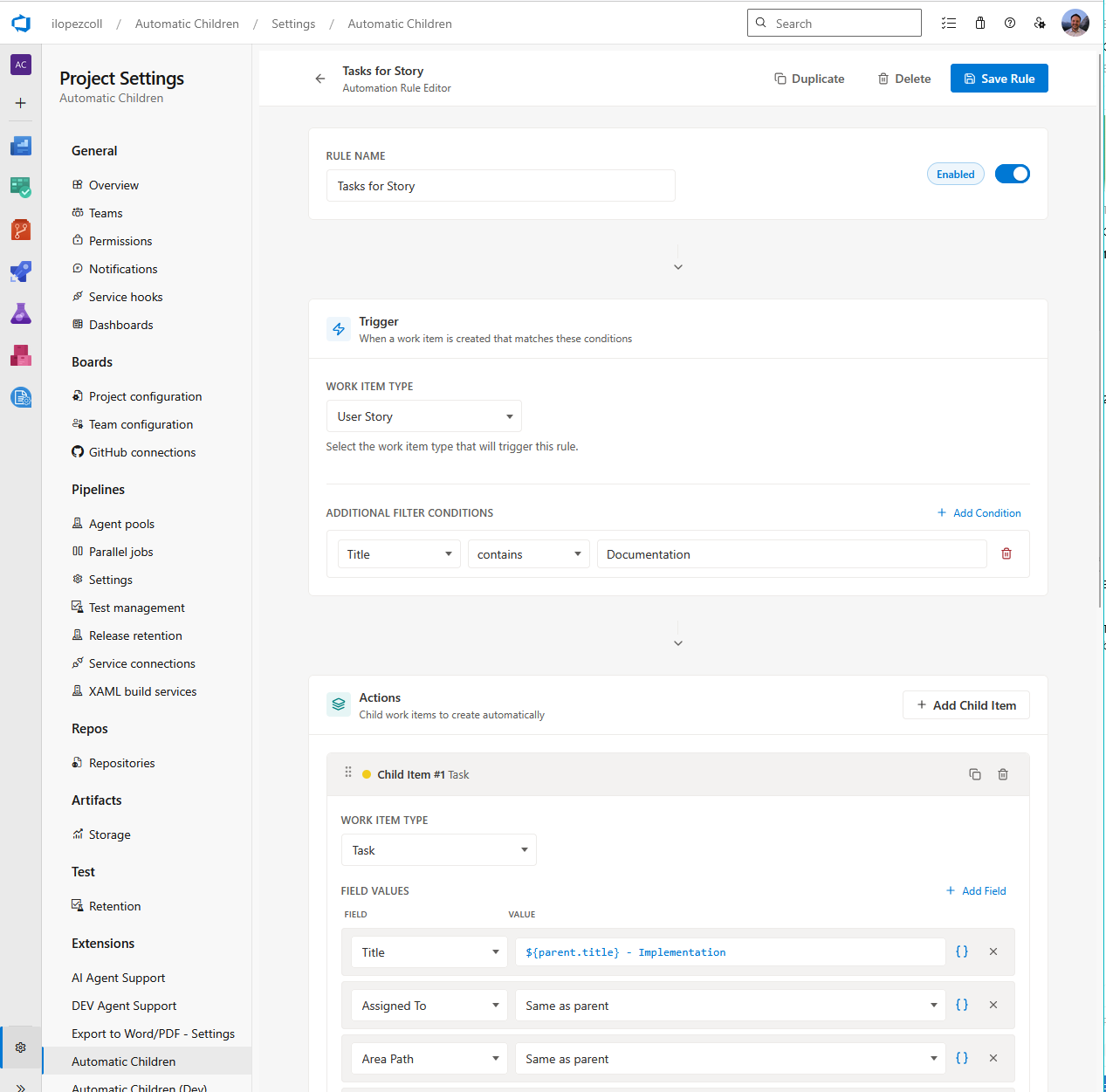
2. Define a rule
Click Add Rule, name it, and set the trigger (e.g. work item type = User Story, Title contains "Documentation") and the actions (child work item type and field mappings, with placeholders like {{System.Title}}). Save once—the rule applies everywhere that matches.
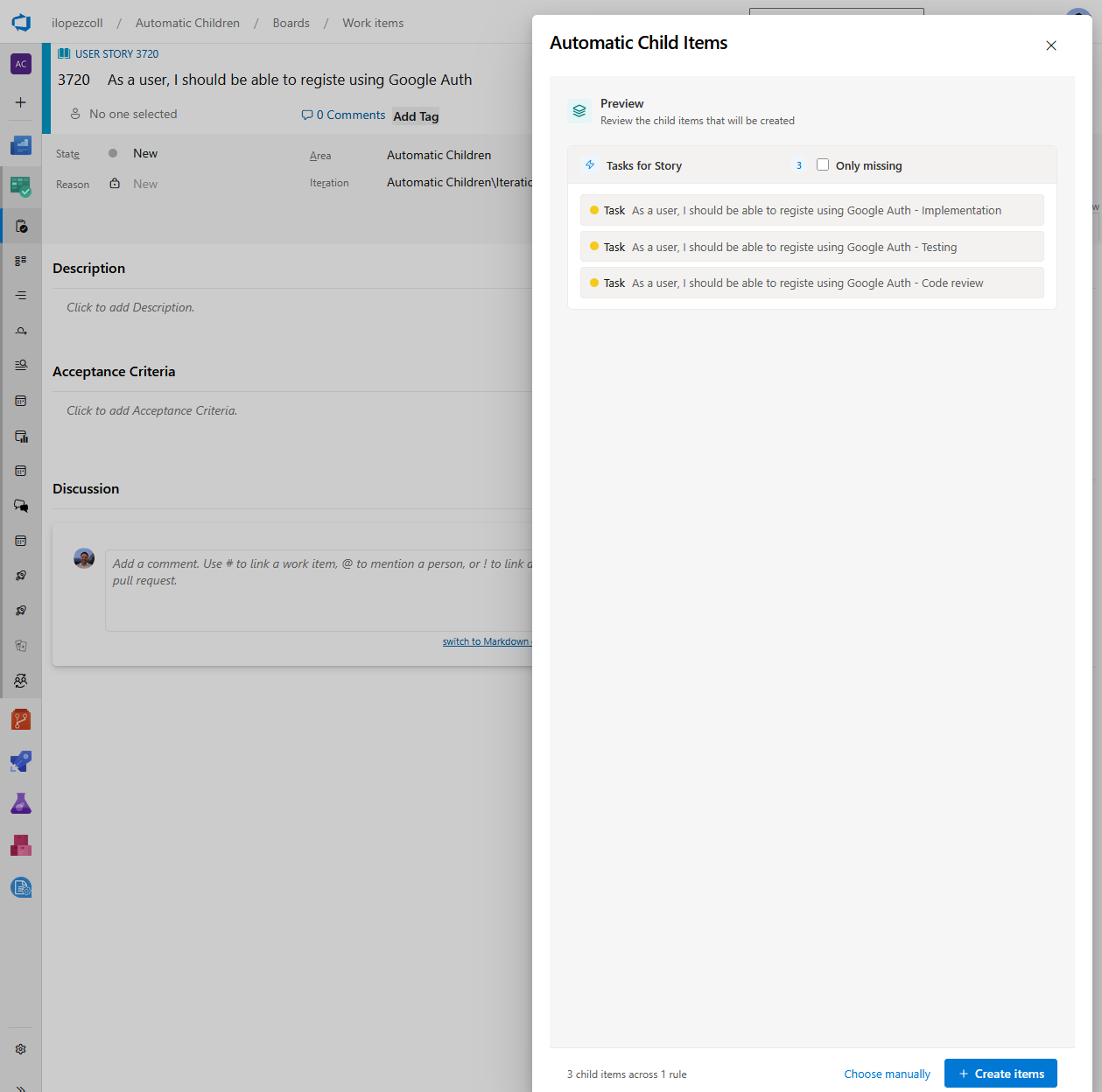
3. Execute the rule
Open a work item that matches your rule (or select several from a backlog or query), use the … menu and choose Automatic Child Items. The side panel shows which rules apply and a preview of the children; run when ready. No repetitive manual creation—one action, consistent structure.
Cascades
Cascades chain multiple rules so a single run builds an entire hierarchy (e.g. Epic → Features → User Stories → Tasks). You pick a master rule that runs on the work item you open, then add stages: each stage runs one or more general rules on every item created in the previous step. The result is multiple levels of children in one action.
When to use them — Use cascades when you often create the same multi-level structure (Epic down to Tasks, or similar). Use general rules only when you only need one level of children or when you run from multiple selected work items (cascades are not available in multi-select). For full setup, see docs.automatic-children.com.
Requirements and support
- Azure DevOps Services or Azure DevOps Server.
- Scopes: Work Items (read/write), Extension data (write), Graph (for identity).
For detailed guides and concepts, see docs.automatic-children.com. For product and pricing, see automatic-children.com.
Release notes
1.2.4 - June 2026
- Backend Optimization - Users report some slight perfomance issues during license validation.
1.2.2 - March 2026
- Multi-select work items — Run Automatic Child Items on multiple selected work items at once from the backlog (Epics, Features, sprint backlogs) or from query results. Select one or more items, right-click, and choose Automatic Child Items; the same side panel opens and you can run rules across all selected parents in a single action. All selected items must be the same work item type; up to 20 items per run. Cascades are not available when two or more items are selected—only rules. See Multi-select work items for details.
1.2.1 - March 2026
- Default mandatory fields for new children — New child definitions now pre-populate mandatory fields, and required fields can no longer be removed from mappings.
- Rule validation for unsafe configurations — Added extra validation when saving rules to catch configurations that could fail at execution time, with clear guidance to fix them.
1.2.0 - March 2026
- Cascades — Chain multiple general rules so one action creates an entire hierarchy (e.g. Epic → Feature → User Story → Task). Configure master rule and stages in the new Cascades tab.
- Side panel preview — Before creating, the sidebar shows which rules and cascades match and which children will be created. Select what to run and see duplicate warnings.
- Field conditions — General rules can now filter by field conditions (equals, contains, empty, not empty, etc.) in addition to work item type and state.
- Export/import — Backup and restore rules, or share configurations between projects and Azure DevOps instances.
- UI improvements — Refined project and organization settings layout, clearer validation messages, and faster loading.
1.1.3 - February 2026
- Bug fix — Fixed rules not appearing in the context menu after adding the first rule in a new project.
- Bug fix — Placeholder
{{System.AssignedTo}} now correctly resolves when the parent has no assignee.
- Bug fix — Side panel no longer flickers when switching between work items.
- Improvement — Better error message when work item type or state no longer exists in the project.
1.1.2 - February 2026
- Bug fix — Fixed duplicate children being created when running multiple rules in quick succession.
- Bug fix — Organization Settings hub now loads correctly for organizations with many projects.
- Improvement — Rule list in Project Settings loads faster for projects with many rules.
- Improvement — Context menu action is disabled with a tooltip when no rules match the current work item.
1.1.1 - February 2026
- Bug fix — Fixed crash when a rule referenced a work item type that was later removed from the project.
- Bug fix — Corrected date/time placeholders in field mappings (e.g.
{{System.CreatedDate}}) to use organization time zone.
- Bug fix — Save button in rule editor now correctly reflects unsaved changes.
- Improvement — Clearer validation when a required child field is missing from the mapping.
1.1.0 - February 2026
- General rules — Define when to run (parent type and state) and what to create (child work item type and field mappings).
- Placeholders — Use
{{System.Title}}, {{System.AssignedTo}}, and other parent field references in child titles and fields.
- Context menu action — “Automatic Child Items” on work item context menu to run applicable rules.
- Project Settings hub — Configure and reorder rules under Project Settings > Automatic Children.
- Organization Settings — License and plan management, project assignment for paid plans.

