CloudMate for Visual Studio
CloudMate integrates the mate CLI into Visual Studio for .NET solutions that include front-end/static assets.
Best Use
CloudMate is best used in .NET projects where TypeScript/CSS pipelines and image optimization are managed alongside C# code.
Prerequisites
Install the CloudMate CLI globally:
dotnet tool install -g AngryMonkey.CloudMate.CLI
Features
Bundler
- TypeScript compilation — compiles
.ts files using the bundled TypeScript compiler; supports tsconfig.json auto-detection or explicit path
- LESS compilation — compiles
.less files to CSS using the bundled Less.js engine
- Sass / SCSS compilation — compiles
.sass and .scss files to CSS using the bundled Dart Sass engine
- CSS passthrough & bundling — concatenates plain
.css files into a single output bundle
- JavaScript passthrough & bundling — concatenates plain
.js files into a single output bundle
- Minification — produces
.min.css and .min.js side-by-side with every bundle (configurable per build)
- Source maps — optional source map generation for both CSS and JavaScript outputs
- TypeScript declaration files — generates and bundles
.d.ts declaration files alongside compiled JS output
- WebClean transform — strips CommonJS
require()/exports artifacts from TypeScript output for direct browser use
- Glob input patterns — input lists support glob patterns; multiple inputs are resolved and concatenated in order
- Multiple builds — define named build profiles (
dev, dist, etc.) each with their own output directory, minification, and source-map settings
- Output directory versioning — optionally append the package version or name segment to the output path (
OutDirVersioning, OutDirName)
- Per-output-type directory suffixes — separate sub-folder suffixes for CSS and JS outputs within the same build (
OutDirSuffix)
Image Compression
- Raster image compression — re-encodes PNG, JPEG, GIF, and WebP images using SkiaSharp; keeps the original when re-encoding would increase the file size
- SVG passthrough — copies SVG files to the output directory without modification
- Resize to max bounds — optionally constrain images to a maximum width and/or height while preserving the aspect ratio (never enlarges)
- Format conversion — convert images to a different format (
png, jpg, jpeg, gif, webp, tiff) via OutputFormat
- Glob input patterns — image input supports glob patterns for batch processing entire directories
- Skip-if-exists — already-compressed outputs are skipped on subsequent runs unless an override is requested
File Watcher
- Incremental rebuild on save — watches all declared input files and re-runs only the affected bundle when a file changes
- Implicit dependency tracking — always watches all
.less and .scss files under the project root so @import changes trigger the right rebuild
- Config hot-reload — detects changes to
mateconfig.json and automatically restarts the watcher with the new configuration
- Config deletion detection — stops the watcher cleanly when
mateconfig.json is deleted; no restart is attempted until the file is recreated
- Image watch — watches image input globs and re-compresses on add, change, or delete
Configuration
Configuration is stored in mateconfig.json (or mateconfig.yaml / mateconfig.yml) at the project root. CloudMate writes mateconfig.json automatically when a command is first used.
Supported config file names (searched in order):
mateconfig.json, mateconfig.yaml, mateconfig.yml, .mateconfig, .mateconfig.json, .mateconfig.yaml, .mateconfig.yml, package.json (via mateconfig key)
Example mateconfig.json:
{
  "builds": [
    {
      "name": "dev",
      "css": { "minify": true, "sourceMap": false },
      "js":  { "minify": true, "sourceMap": true, "declaration": true, "webClean": false }
    },
    {
      "name": "dist",
      "outDir": "wwwroot/dist",
      "outDirVersioning": true,
      "css": { "minify": true },
      "js":  { "minify": true, "webClean": true }
    }
  ],
  "files": [
    { "input": ["src/styles/**/*.less"], "output": ["wwwroot/css/site.css"], "builds": ["dev", "dist"] },
    { "input": ["src/scripts/app.ts"],   "output": ["wwwroot/js/app.js"],    "builds": ["dev", "dist"] }
  ],
  "images": [
    {
      "input":  ["src/images/**/*"],
      "output": ["wwwroot/images"],
      "maxWidth": 1920,
      "maxHeight": 1080,
      "outputFormat": "webp"
    }
  ]
}
Context Menu Commands
All CloudMate commands appear in Solution Explorer under the CloudMate submenu when you right-click an item. Which commands are visible depends on the type of item selected and whether it is already registered in mateconfig.json.
Compile — .ts .js .css .less .scss .sass
Compile is shown when the selected file is not yet registered in mateconfig.json.
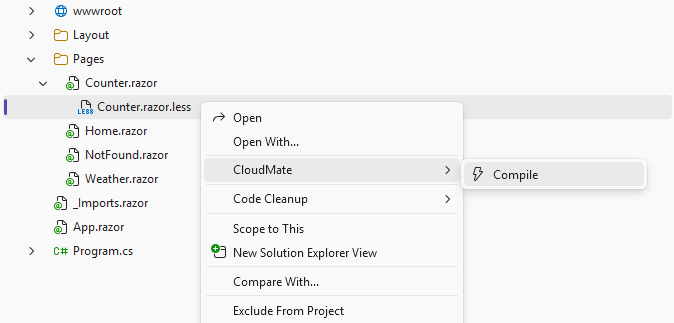
What it does:
- Creates
mateconfig.json at the project root if it does not already exist.
- Appends a
files entry mapping the selected file as input to its compiled output path.
.less / .scss / .sass → output extension becomes .css.ts → output extension becomes .js.js / .css → extension is kept; file is passed through and bundled as-is
- When the project is a .NET project (contains a
.csproj) or has a wwwroot folder, and the file is inside src/ or source/, the output is automatically placed under wwwroot/ with the leading src/source segment stripped (e.g. src/styles/site.less → wwwroot/styles/site.css).
- Runs a one-time compile using the current configuration.
- Starts the always-on file watcher so subsequent saves recompile automatically.
Recompile — .ts .js .css .less .scss .sass
Recompile replaces Compile on the same menu item when the selected file is already registered in mateconfig.json.
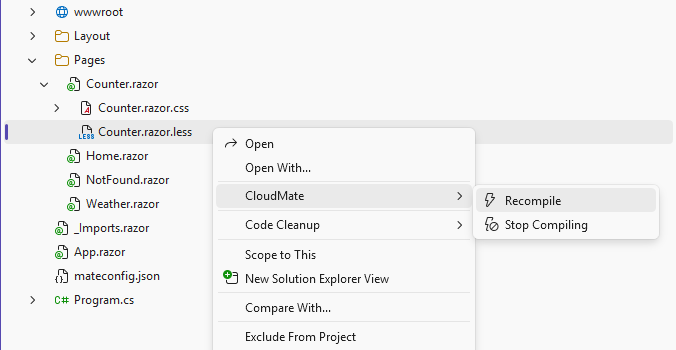
What it does:
- Makes no changes to
mateconfig.json.
- Runs a one-time compile using the existing configuration.
- Ensures the always-on watcher is running.
Stop Compiling — .ts .js .css .less .scss .sass
Stop Compiling is shown alongside Recompile when the selected file is already registered in mateconfig.json.
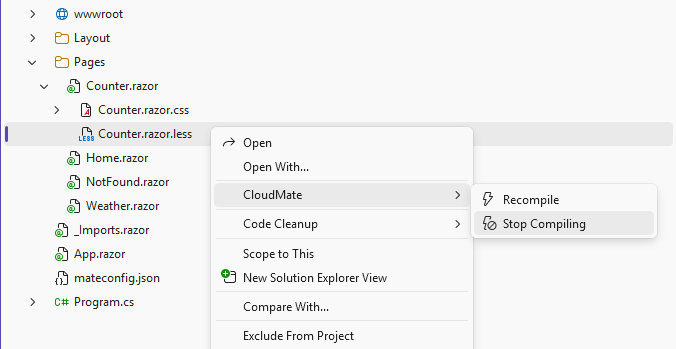
What it does:
- Removes all
files entries in mateconfig.json whose input matches the selected file.
- Runs a one-time build so the remaining entries in the config are still up to date.
- Keeps the watcher running for any remaining configured files.
Compress — folder
Compress is shown when a folder is selected and it is not yet registered in mateconfig.json.
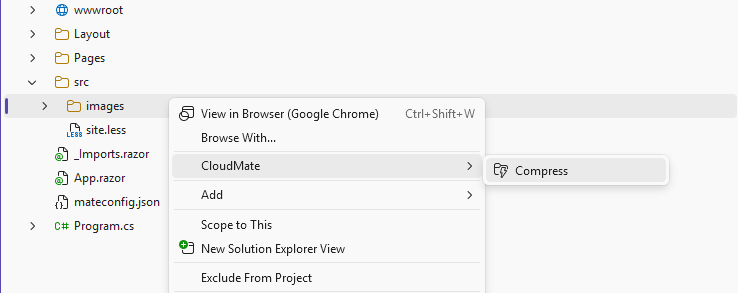
What it does:
- Creates
mateconfig.json at the project root if it does not already exist.
- Appends an
images entry with a recursive glob (folder/**/*) as input.
- When the project is a .NET project (contains a
.csproj) or has a wwwroot folder, and the folder is inside src/ or source/, the output destination is automatically remapped to the corresponding path under wwwroot/ (e.g. src/images → wwwroot/images).
- Runs a one-time image compression pass for all images found in the folder.
- Starts the always-on watcher so new or changed images in the folder are recompressed automatically.
Supported image types: png, jpg, jpeg, gif, webp, svg (SVG is copied as-is).
Stop Compressing — folder
Stop Compressing replaces Compress for folders that are already registered in mateconfig.json.
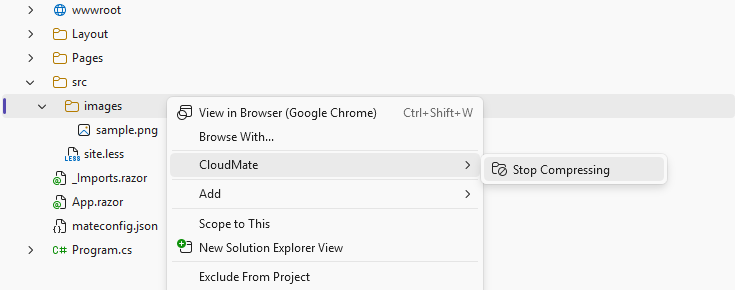
What it does:
- Removes all
images entries in mateconfig.json whose input matches the selected folder glob.
- Runs a one-time build so any remaining config entries stay up to date.
- Keeps the watcher running for any remaining configured entries.
Rebuild — mateconfig.json
Rebuild is shown only when the mateconfig.json file itself is selected.
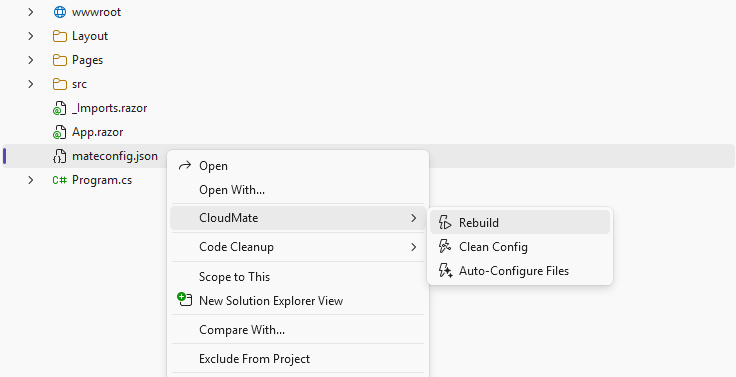
What it does:
- Makes no changes to
mateconfig.json.
- Runs a full one-time build of all
files and images entries in the configuration.
- Ensures the always-on watcher is running afterwards.
Use this after manually editing the config to apply all changes at once.
Clean Config — mateconfig.json
Clean Config is shown only when the mateconfig.json file itself is selected.
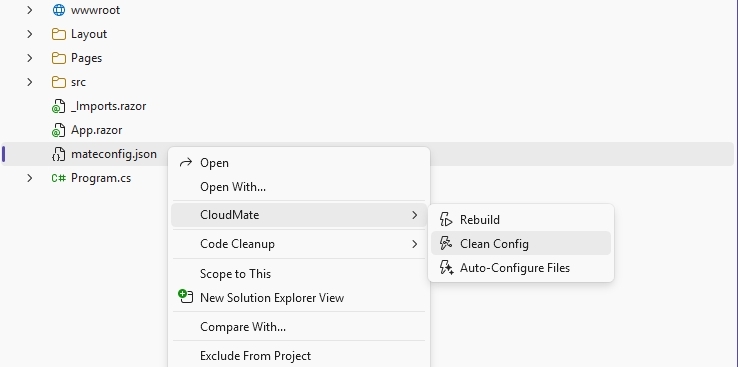
What it does:
- Scans every
files and images entry in mateconfig.json.
- Removes any entry (or individual path within an array input) whose source path no longer exists on disk.
- Entries with a single missing input path are removed entirely.
- Entries with an array of inputs have only the missing items pruned; the entry is kept if at least one input remains.
- Glob patterns (
*, ?) are always preserved — only concrete file and directory paths are checked.
- Saves the cleaned config if anything was removed and logs a summary.
Use this after deleting source files to keep mateconfig.json in sync.
Auto-Configure Files is shown only when the mateconfig.json file itself is selected.
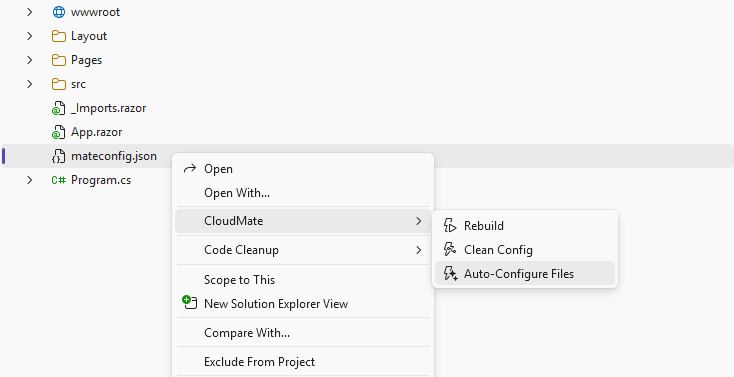
What it does:
- Cleans stale entries first — scans every
files and images entry and removes any whose source path no longer exists on disk (same logic as Clean Config). This ensures broken inputs are never left behind.
- Recursively scans the project root for compilable source files:
.ts, .less, .scss, .sass.
- Skips directories that are not source roots:
bin, obj, node_modules, .git, .vs, wwwroot.
- For each discovered file that is not yet registered in
mateconfig.json, adds a files entry with the correct output path — following the same src/ → wwwroot/ mapping used by Compile (applied when the project is a .NET project or has a wwwroot folder).
- Logs a summary of both phases: how many stale entries were removed and how many new files were added.
Use this on an existing project to clean and register all source files at once without adding them one by one.
Unsupported items
No CloudMate commands appear for:
- C# source files (
.cs, .razor, .cshtml, …)
- Project files (
.csproj, .sln)
- Image files (
.png, .jpg, .svg, …)
- Data / config files (
.json other than mateconfig.json, .xml, .txt, …)
- Any other file type not in the supported compile list
Output Paths and the src / source Folder Convention
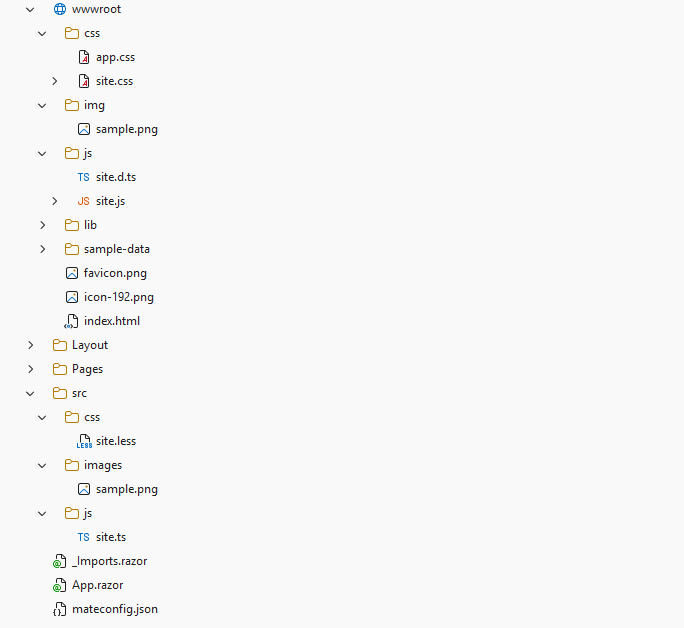
CloudMate automatically maps source files under src/ or source/ to their corresponding location under wwwroot/ whenever the project is a .NET project (contains a .csproj) or already has a wwwroot folder. The leading src / source segment is stripped:
| Source file |
Output file |
src/styles/site.less |
wwwroot/styles/site.css |
src/scripts/app.ts |
wwwroot/scripts/app.js |
source/images/logo.png |
wwwroot/images/logo.png (compressed) |
src/images/ (folder) |
wwwroot/images/ (compressed) |
Files outside src/ or source/ are output next to the source file (no remapping). If neither condition applies (no .csproj and no wwwroot), paths are kept as-is.
Output
All CloudMate output is written to the CloudMate pane in the Visual Studio Output window.

