
Rainbow Folders
Give your Solution Explorer folders a color, so you find the right one at a glance.
Rainbow Folders tints the folder icons in Solution Explorer based on the folder's name. Make Controllers blue, Models red, Services green, or whatever fits your project. Every folder with a matching name is recolored, in every SDK-style project, including nested ones.
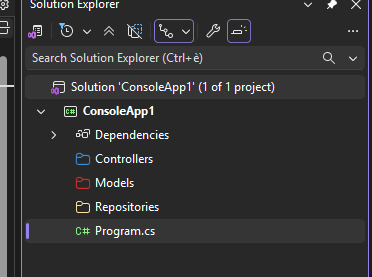
Why
In a large solution, every folder icon looks the same: a yellow folder. Your eyes read each name to find what you need. Color gives the layout a shape you recognize before you read, so you can jump to Controllers or Models faster in a tree with dozens of folders.
Features
- Color by name. A rule is a folder name plus a color. Matching is case-insensitive and exact, so a rule for
Models also colors models, but not ViewModels.
- Any color you like. Pick any color with the standard color dialog. Both the closed and the expanded folder icon are tinted.
- Works at every depth.
Areas\Admin\Models is colored just like a top-level Models.
- Sensible defaults.
Controllers is blue and Models is red out of the box.
- Your own settings page. Edit all rules in one grid under Tools > Options > Rainbow Folders > Folder Colors.
- Safe input. Empty names, duplicate names, and names that cannot be folder names are flagged right in the grid, and nothing is saved until the rules are valid.
- Kept across updates. Rules are stored per user and survive Visual Studio updates.
How to use
- Open Tools > Options > Rainbow Folders > Folder Colors.
- Type a folder name on the blank row at the bottom of the grid.
- Click the Color cell and choose a color.
- Press OK.
- When Visual Studio asks whether to reload your projects, choose Yes. Solution Explorer then shows the new colors.
To remove a rule, select its row and press Delete. Reset to defaults brings back the two shipped rules.
Example rules
| Folder name |
Color |
Controllers |
blue |
Models |
red |
Services |
green |
Repositories |
purple |
Good to know
- Reloading projects. Visual Studio has no way to refresh folder icons in place, so after you change a rule the extension offers to reload your projects. Reloading closes the open editors of those projects for a moment and may ask you to save changes.
- Empty folders. Folders that contain no files disappear from Solution Explorer when a project is reloaded. They still exist on disk. Add a file to keep one visible.
Requirements
- Visual Studio 2022 version 17.14 or later, or Visual Studio 2026.
- Community, Professional or Enterprise edition, 64-bit.
- Projects in the SDK style (for example
<Project Sdk="Microsoft.NET.Sdk">).
Not supported
- Older, non-SDK project files.
- Virtual Solution Folders (the ones created with Add > New Solution Folder).
- Open Folder mode.
- Wildcards or regular expressions in rule names.
License
Released under the MIT License. Copyright (c) 2026 Abominion.

