Skip to content
| Marketplace
Sign in
Azure DevOps>Azure Boards>Work Item Code Trace
Work Item Code Trace

Work Item Code Trace

ASOLUT365

| (0) | Free
See which TFVC changesets and files belong to a work item, per branch (Dev, Main, Release), with merge chains, per-branch code differences and an Excel export of the code changes.
Get it free

Work Item Code Trace

See at a glance which code belongs to a work item, in which branch it was checked in, and where it was merged.

Work Item Code Trace adds two tabs to every work item in Azure DevOps Services: Changesets and Files. They read the Team Foundation Version Control (TFVC) changesets that are linked to the work item and show how that work moved through your branches, for example Dev, Main and Release. Nothing is changed in your repository or your work items, and nothing leaves your Azure DevOps organization.

Changesets tab: the path through your branches

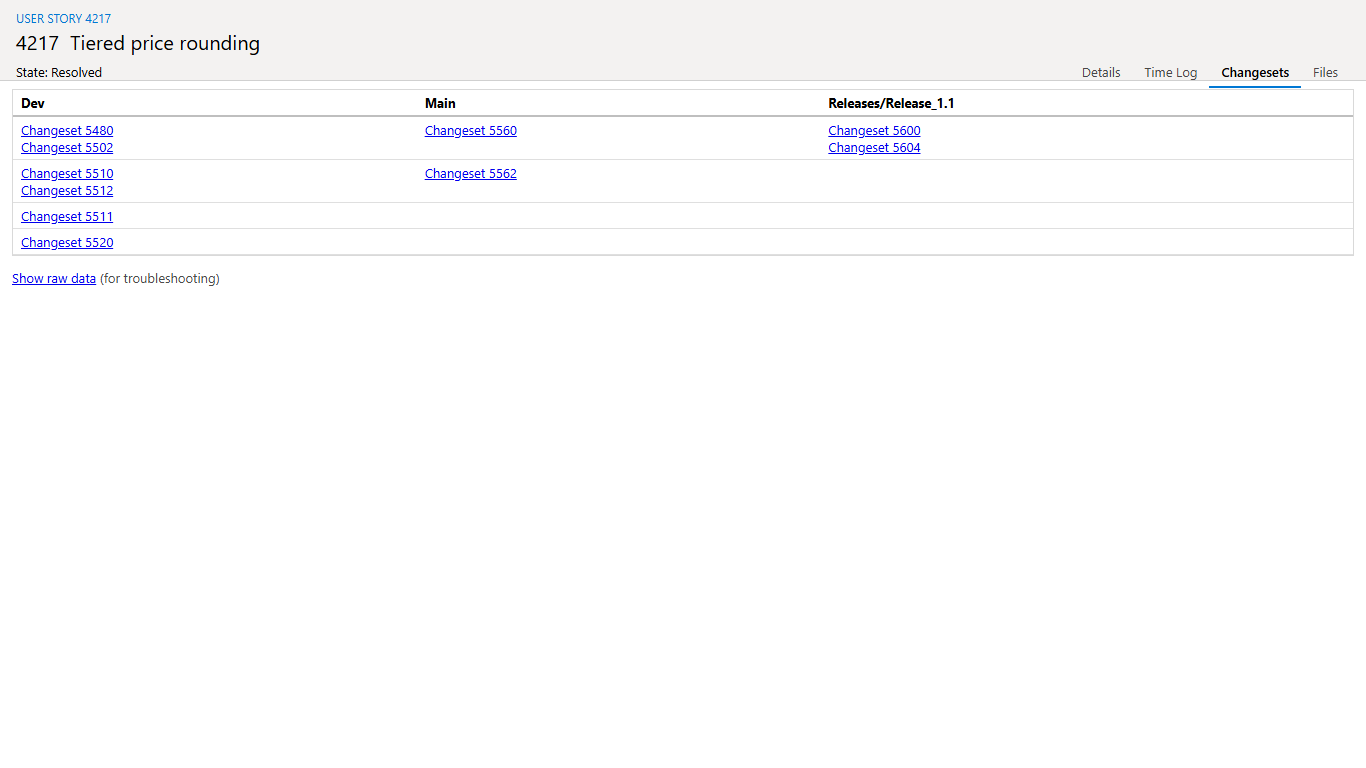
One column per branch, ordered by merge flow. Changesets that belong together are on one row: the check-ins on Dev, the merge changeset on Main, and the merges on to the release branch.

Changesets tab: one column per branch, connected changesets on one row

  • Merge relationships come from the merge information TFVC records, matched through the files that were really merged. Changesets that were not merged stay on their own row.
  • A merge whose source changeset is not linked to the work item shows where it came from.

Files tab: every file the work item touched

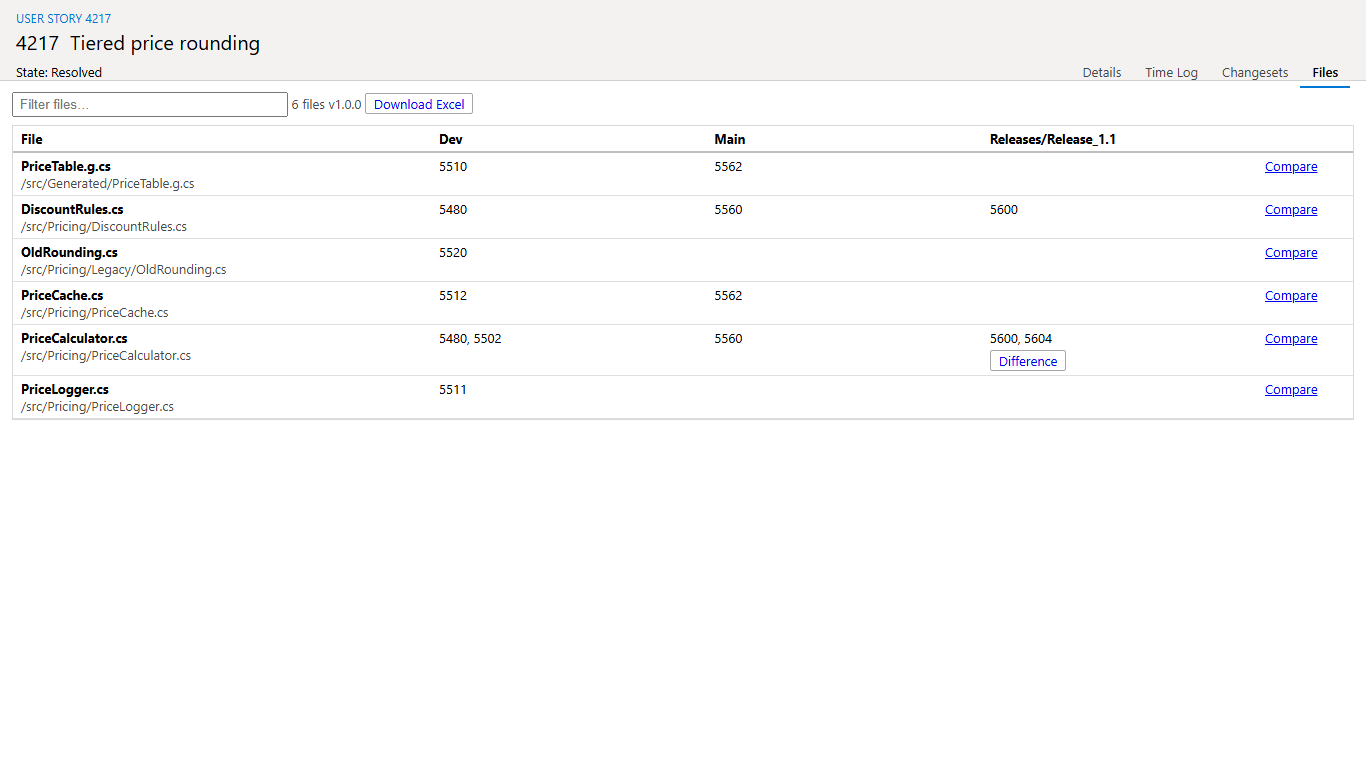
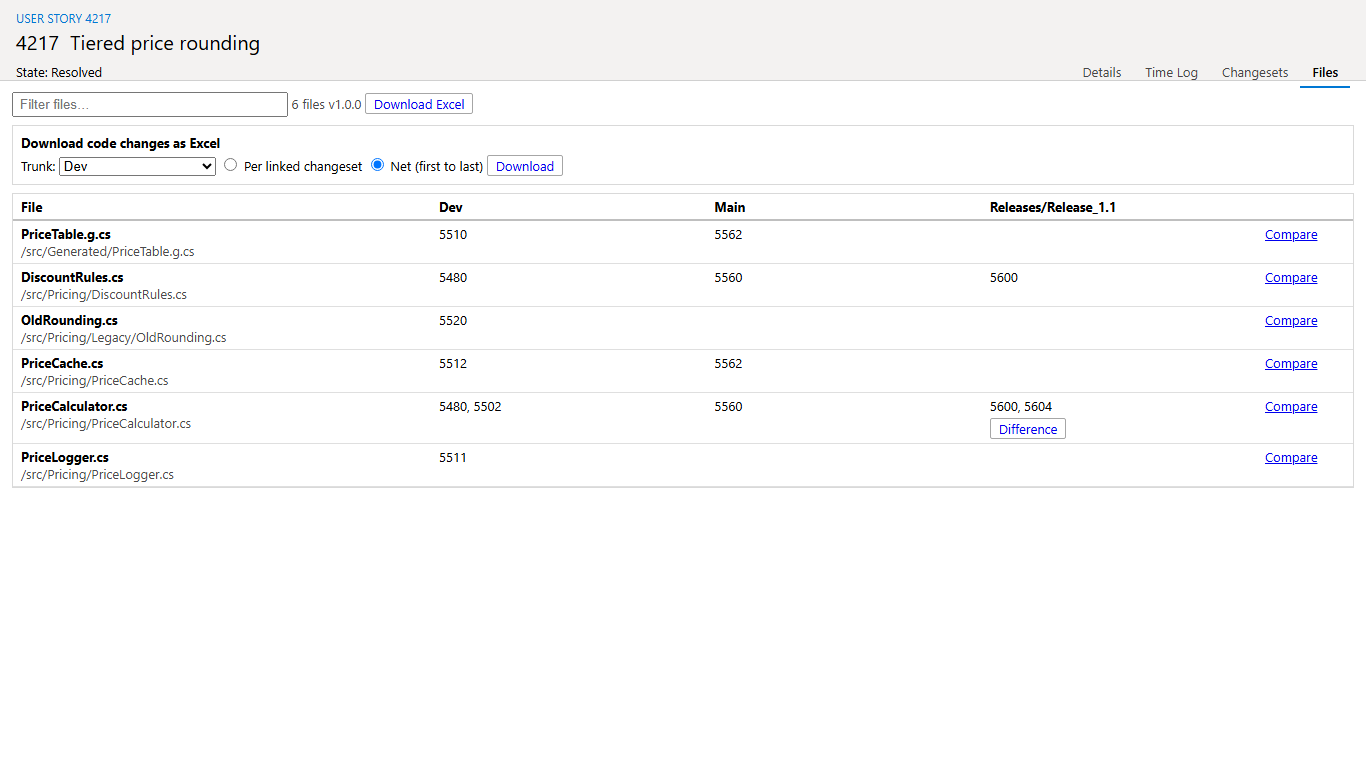
One row per file, with the changesets that changed it in each branch. Filter the list by file name.

Files tab: files with their changesets per branch

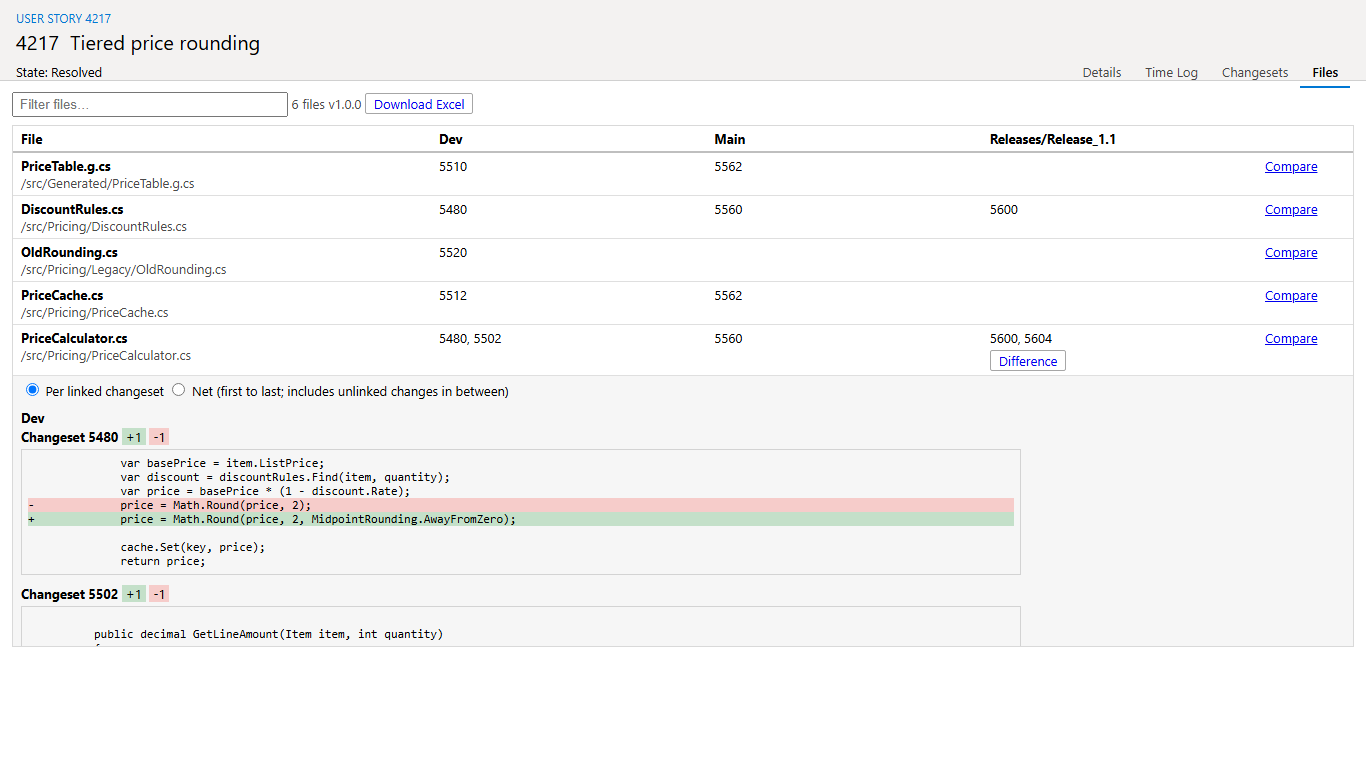
Compare shows what the work item changed in that file, branch by branch, either per linked changeset or as one net change from the first to the last linked changeset.

Compare: the changes per branch and changeset

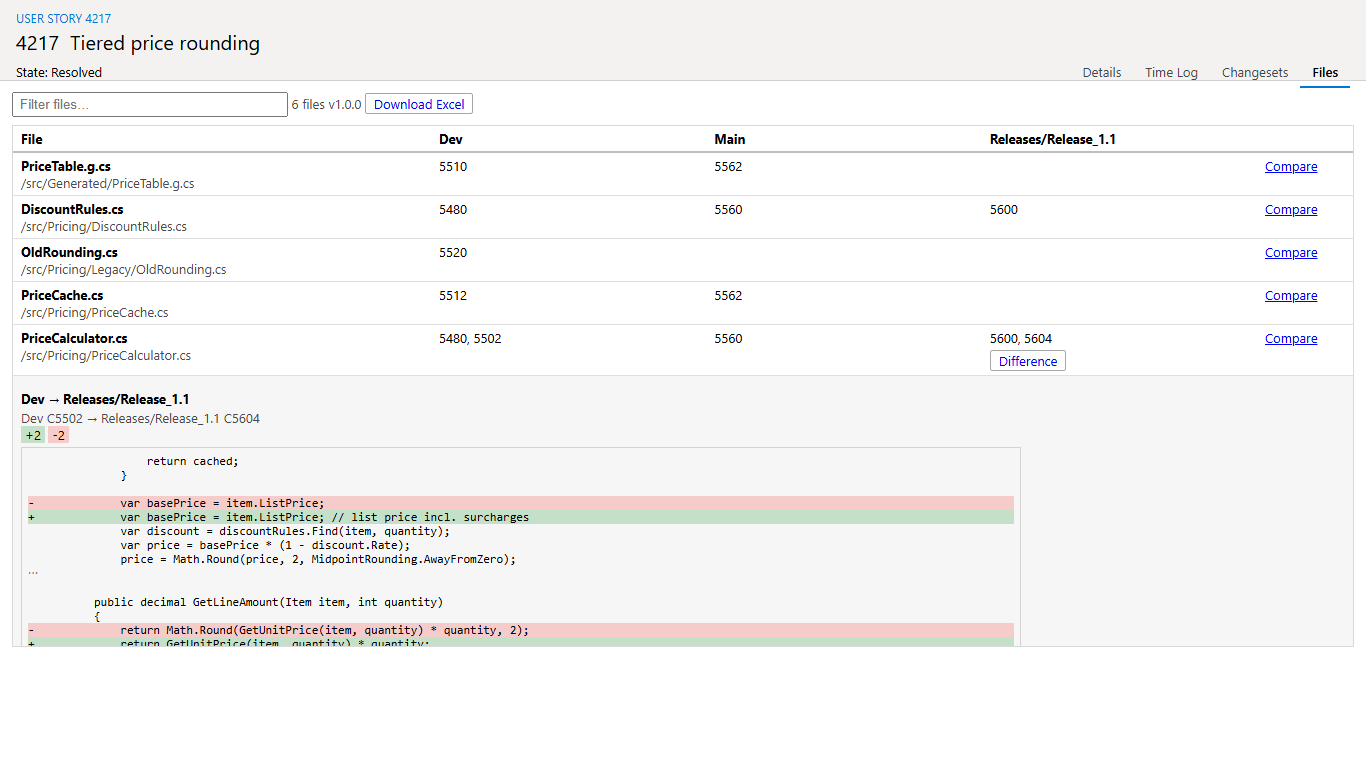
Difference appears in a branch's cell when the file at that branch's last linked changeset differs from the file in the first branch that has it (usually Dev). One click shows exactly what differs, for example a fix that never reached the release branch.

Difference between Dev and the release branch

Download the code changes as Excel

Choose a branch, choose per changeset or net, and download one Excel file with all code changes of the work item in that branch.

Download Excel panel

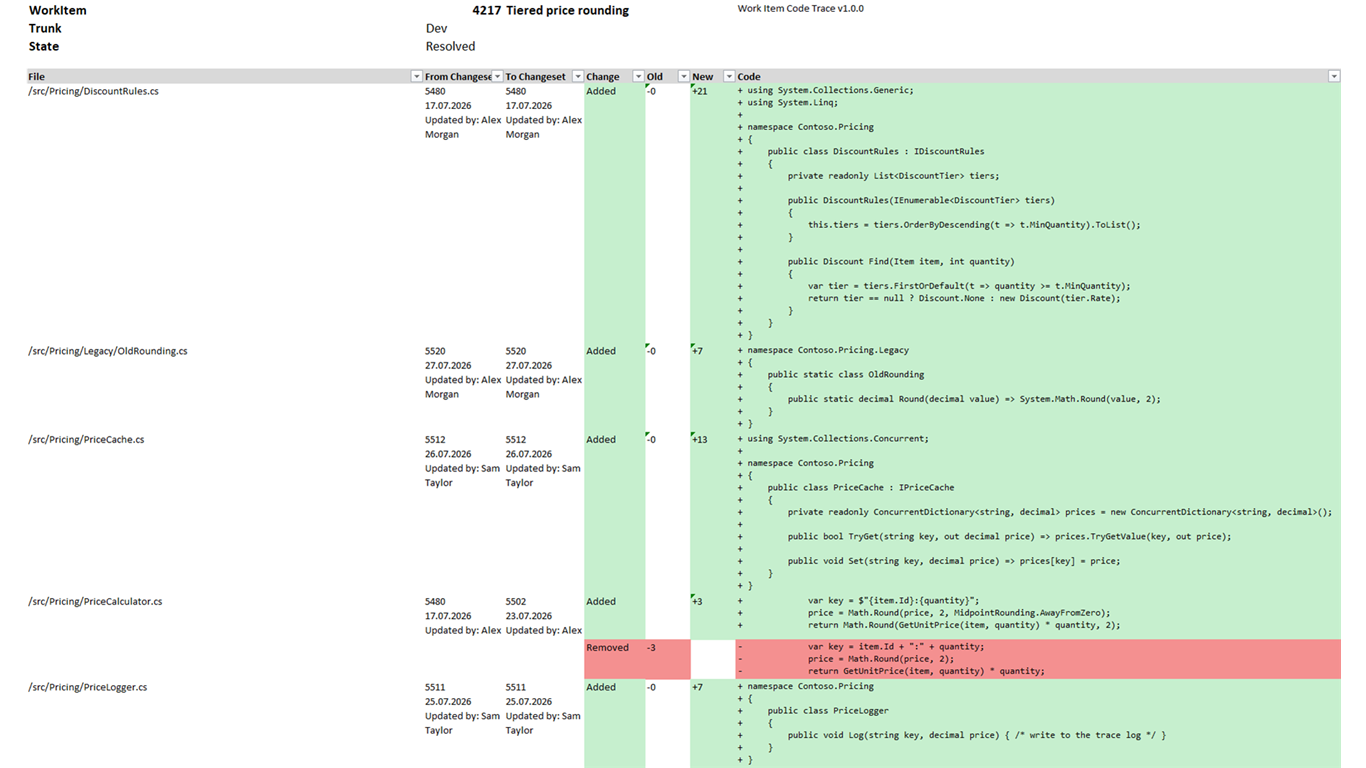
The Changes sheet starts with the work item, branch and state. Then it has one row per file with the first and last changeset (number, date, who updated it), the line counts, and all added lines (green) and removed lines (red) in one cell each. A Summary sheet lists the files with their line counts.

The Excel export

Dashboard widget

The package also contains a small dashboard widget, Work Item States, that counts work items per state for a WIQL query you choose.

Requirements

  • Azure DevOps Services with work items that have TFVC changesets linked (the Development section of the work item, link type Fixed in Changeset).
  • Permissions asked for at install: read work items and read code. The extension only reads. Each person sees only what their own account may see.

Good to know

  • TFVC only. Work items that only have Git commits or pull requests show no changesets.
  • Linked changesets only. A merge that is not linked to the work item is not part of the picture.
  • Large work items. Changesets are loaded a few at a time, so a work item with hundreds of changesets takes a while to load.
  • Code differences are calculated in your browser from the file versions in TFVC. Changed regions that are too large for the browser are listed as "too large to diff here". Renamed files appear as a removed and an added file.
  • Excel cell limit. Excel allows about 32,000 characters in a cell, so very long code continues on "(cont.)" rows.
  • Dates in the Excel export use the format dd.mm.yyyy.

Privacy statement

Work Item Code Trace is an extension for Azure DevOps Services. It runs entirely in your web browser.

  • What it reads: work items and Team Foundation Version Control (TFVC) changesets and file contents of the Azure DevOps organization in which it is installed. It uses the permissions granted at installation (read work items, read code) and your own access rights.
  • What it sends: requests to your own Azure DevOps organization only. It does not send any data to ASOLUT 365 GmbH or to any third party.
  • What it stores: nothing. It does not use cookies, analytics, tracking or advertising. Excel files are created in your browser and saved to your computer.
  • What ASOLUT 365 GmbH receives: no personal data or customer data. Marketplace statistics, for example install counts, are provided by Microsoft under Microsoft's own terms.
  • Contact: https://asolut365.com/de/kontakt

Last updated: 8 October 2026. The general privacy policy of the ASOLUT 365 GmbH website is linked from this page.

Feedback and support

Use the Q & A tab on this page for questions and feedback, or contact ASOLUT 365 GmbH through the support link on this page (https://asolut365.com/de/kontakt).

  • Contact us
  • Jobs
  • Privacy
  • Manage cookies
  • Terms of use
  • Trademarks
  • Your Privacy Choices
  • Consumer Health Privacy
© 2026 Microsoft