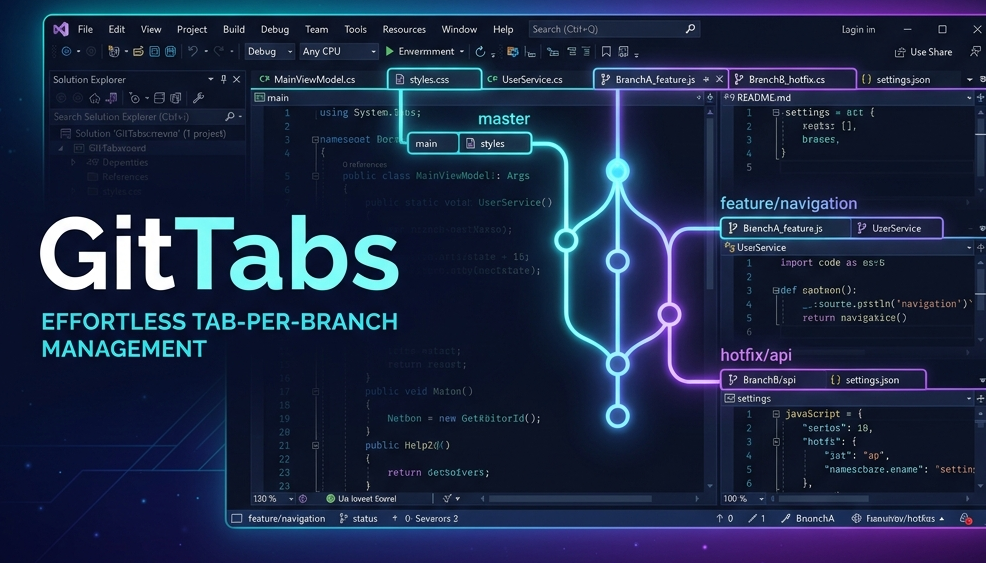
GitTabs
Your tabs follow your branches.
A Visual Studio extension that automatically saves and restores open document tabs per git branch.




💡 The Problem
You're deep in feature/auth, twelve files open, perfectly arranged. You switch to main to review a PR — and now your tabs are gone. Switch back? Gone again. Every branch switch destroys your context.
GitTabs fixes this. It silently remembers which tabs belong to which branch and restores them instantly when you switch back.
✨ Features
| Feature |
Description |
| 🔄 Automatic Save & Restore |
Tabs are saved when you leave a branch and restored when you return — zero manual effort. |
| ⚡ Zero Startup Impact |
Built as an AsyncPackage with background loading. VS starts just as fast as without the extension. |
| 🌿 Git Worktree Support |
Works with standard repos and git worktrees alike. |
| 🔀 Detached HEAD Support |
Even git checkout <commit> gets its own tab set (detached-a1b2c3d4). |
| 🆕 Smart New Branch Behavior |
Switching to a branch with no history? Your current tabs stay open — because you probably want them. |
| 💾 Per-Solution Isolation |
Tab state is scoped to each solution, so different projects never interfere. |
| 🛡️ Graceful Degradation |
No git repo? The extension stays completely dormant. No errors, no overhead. |
| 📋 Output Window Diagnostics |
A dedicated GitTabs output pane logs skipped files and errors for easy debugging. |
🚀 Getting Started
Prerequisites
- Visual Studio 2022 version 17.14 or later (amd64)
- A git-initialized repository
Installation
- Download the latest
.vsix from Releases.
- Double-click the
.vsix file to install.
- Restart Visual Studio.
That's it. No configuration required — GitTabs starts working the moment you open a solution with a git repository.
🎬 How It Works
  ┌──────────────┐     switch branch      ┌──────────────┐
  │  feature/auth │ ──────────────────────► │    main      │
  │               │                        │               │
  │  Login.cs     │   ① Save tabs for     │  Program.cs   │
  │  AuthSvc.cs   │      feature/auth     │  README.md    │
  │  Token.cs     │                        │  CI.yml       │
  │  [active] ●   │   ② Restore tabs for  │  [active] ●   │
  └──────────────┘      main              └──────────────┘
- Branch switch detected — GitTabs watches
.git/HEAD with a FileSystemWatcher and 400ms debounce.
- Save — All open document paths (and which tab was active) are persisted as JSON.
- Restore — Previously saved tabs for the target branch are reopened, and the active tab is re-focused.
Storage
Tab data is stored as lightweight JSON files in:
%LocalAppData%\GitTabs\<SolutionName>\<BranchName>.json
Example:
%LocalAppData%\GitTabs\MyApp\main.json
%LocalAppData%\GitTabs\MyApp\feature_auth.json
[!NOTE]
Branch names with special characters (e.g. feature/auth) are automatically sanitized for safe file names.
🏗️ Architecture
GitTabs/
├── GitTabsPackage.cs           # AsyncPackage entry point & lifecycle
├── Models/
│   └── TabInfo.cs              # TabInfo + BranchTabData data models
└── Services/
    ├── GitBranchWatcher.cs     # FileSystemWatcher on .git/HEAD
    ├── TabManager.cs           # DTE2-based tab save/restore logic
    └── TabStorageService.cs    # JSON file persistence in %LocalAppData%
Component Overview
graph LR
    A["GitTabsPackage<br/><i>AsyncPackage</i>"] --> B["GitBranchWatcher<br/><i>FileSystemWatcher</i>"]
    A --> C["TabManager<br/><i>DTE2 Automation</i>"]
    C --> D["TabStorageService<br/><i>JSON Persistence</i>"]
    B -- "BranchChanged event" --> A
    D -- "%LocalAppData%/GitTabs/" --> E[("Disk")]
| Component |
Responsibility |
| GitTabsPackage |
Entry point. Handles VS lifecycle events (solution open/close), wires up services, orchestrates save/restore flow. |
| GitBranchWatcher |
Monitors .git/HEAD for changes. Debounces events (400ms) to avoid noise from multi-step git operations. Supports worktrees. |
| TabManager |
Reads open tabs via DTE2.Documents, opens/closes documents, manages the active tab focus. Writes diagnostics to the Output Window. |
| TabStorageService |
Serializes BranchTabData to JSON and persists per-solution/per-branch. Async I/O with graceful error handling. |
🛠️ Building from Source
Prerequisites
- Visual Studio 2022 (17.14+) with the Visual Studio extension development workload
- .NET Framework 4.7.2 targeting pack
Build
# Clone the repository
git clone https://github.com/JonaHD345/GitTabs.git
cd GitTabs

# Build the solution
dotnet build GitTabs.slnx -c Release
The .vsix output will be in GitTabs/bin/Release/.
Debug
- Open
GitTabs.slnx in Visual Studio.
- Set GitTabs as the startup project.
- Press F5 — an experimental VS instance will launch with the extension loaded.
🧩 Technical Details
| Detail |
Value |
| Package Type |
AsyncPackage (background-loaded) |
| Auto-Load Trigger |
SolutionExistsAndFullyLoaded |
| Git Detection |
File system walk from solution dir upward |
| Branch Detection |
.git/HEAD file parsing |
| Change Detection |
FileSystemWatcher + 400ms debounce timer |
| Serialization |
Newtonsoft.Json (Formatting.Indented) |
| I/O Model |
Async FileStream (4096 byte buffer) |
| Thread Safety |
JoinableTaskFactory for UI thread marshaling |
🤝 Contributing
Contributions are welcome! Here's how to get started:
- Fork the repository
- Create a feature branch (
git checkout -b feature/amazing-feature)
- Commit your changes (
git commit -m 'feat: add amazing feature')
- Push to the branch (
git push origin feature/amazing-feature)
- Open a Pull Request
Check the Issues tab for ideas on what to work on.
📜 License
This project is licensed under the MIT License — see the LICENSE.txt file for details.
Built with ❤️ for developers who switch branches a lot.

