BigQuery Data View v2 for Visual Studio Code



A powerful Visual Studio Code extension for Google BigQuery. Browse datasets and tables, run queries with real-time validation, view results, format SQL, track query history, estimate costs, and visualize data lineage.
Features
- Authentication - User login, GDrive access, and service account support via gcloud CLI
- Project Explorer - Browse projects, datasets, tables, views, functions, and ML models
- Query Execution - Run queries with
Ctrl+Enter, real-time error highlighting, and byte estimation
- SQL Intellisense - Autocomplete for SQL keywords and BigQuery functions
- Syntax Highlighting - Full support for
.bqsql files with grammar injection for .sql files
- SQL Formatting - Format queries with configurable style options
- Query History - Track all executed queries with re-run and copy capabilities
- Cost Estimation - Real-time cost estimates based on bytes processed
- Table Schema Hover - Hover over table names to see schema details
- Data Lineage - Visualize data flow with CTE support
- Export Options - Download results as CSV or JSONL, copy to clipboard
- Pub/Sub Integration - Publish query results directly to Google Cloud Pub/Sub
Installation
- Open VS Code
- Go to Extensions (
Ctrl+Shift+X)
- Search for "BigQuery Data View v2"
- Click Install
Or install from the VS Code Marketplace.
Requirements
Quick Start
- Install the gcloud CLI and authenticate:
gcloud auth login
- Open the BigQuery panel from the Activity Bar
- Create a new
.bqsql file and write your query
- Press
Ctrl+Enter to run
Keyboard Shortcuts
| Shortcut |
Icon |
Command |
Description |
Ctrl+Enter |
 |
Run Query |
Execute the entire query in the editor |
Ctrl+E |
 |
Run Selected Query |
Execute only the selected text |
Shift+Alt+F |
|
Format SQL |
Format the current SQL document |
Authentication
The extension uses the gcloud CLI for authentication. Three authentication methods are supported:
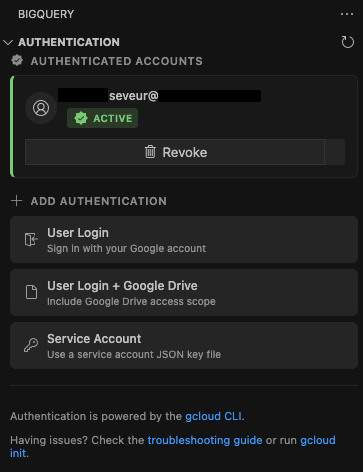
- User login - Opens browser for Google Cloud authentication
- User login + GDrive - Same as above, with Google Drive access for Drive-based tables
- Service account - Select a service account key file (JSON format)
When there's a valid account active with BigQuery permissions, the extension is ready to use.
Additional functionality:
- Activate/switch between multiple accounts
- Revoke authentication
Refresh the authentication screen with the command BigQuery: Authentication refresh.
Projects, Datasets, and Tables Explorer
The BigQuery side panel displays a tree of projects, datasets, tables, views, functions, and ML models.
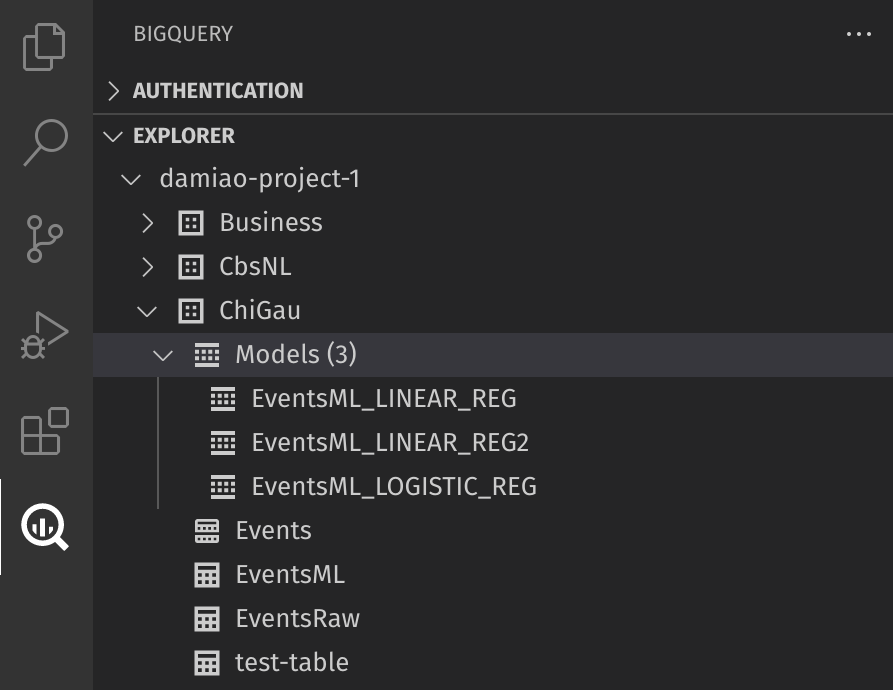
Refresh the explorer with the command BigQuery: Explorer refresh.
You can set a default project that queries will run against by right-clicking on a project.
Right-click on tables and views to access:
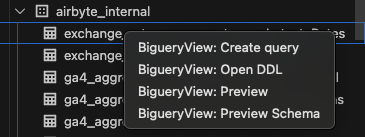
- Create query - Opens a new editor with a basic
SELECT * FROM statement
- Open DDL - Opens the DDL (Data Definition Language) statement for the object
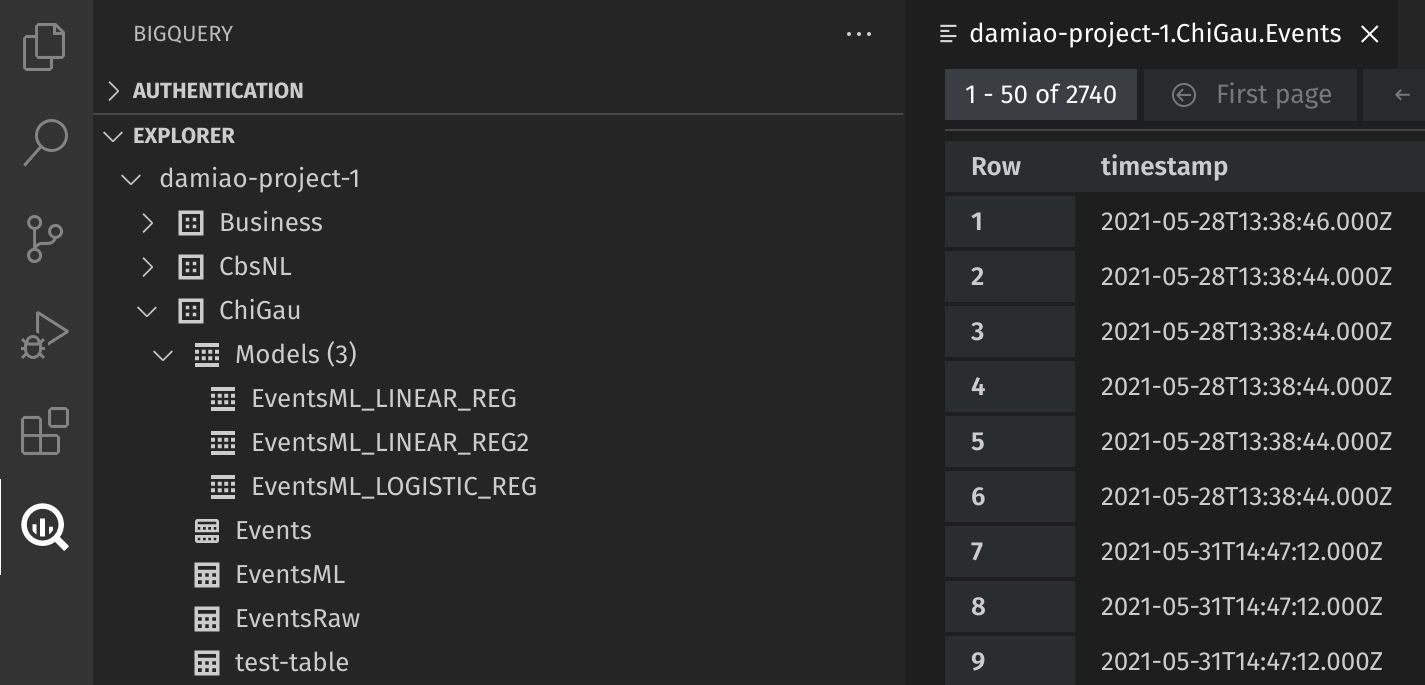
- Preview - Opens a preview of the table data (runs
SELECT * for views and external tables)
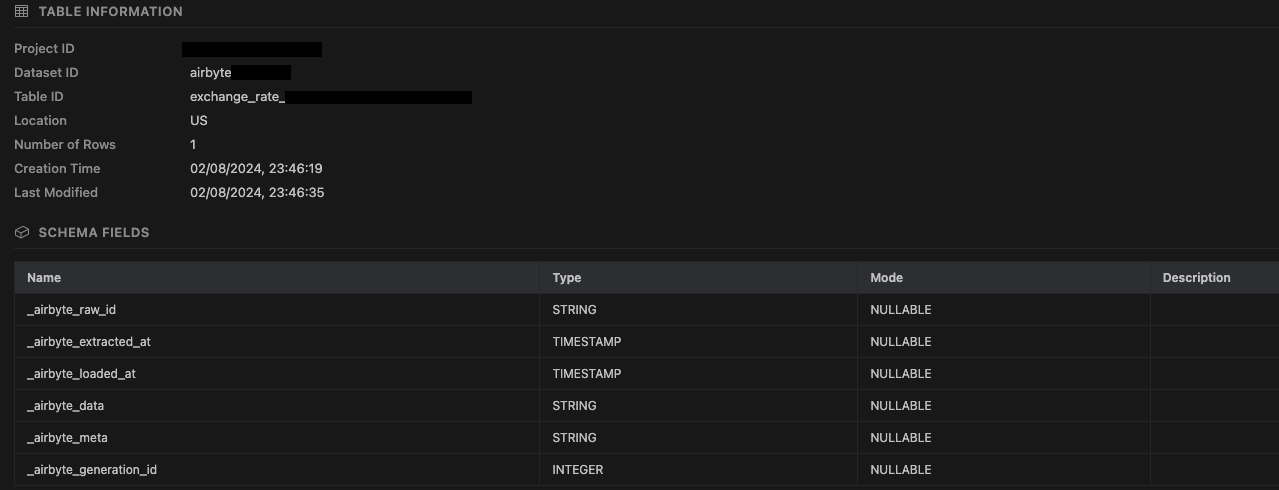
- Preview schema - Opens the table/view schema information
Table Preview
Schema View
Run Queries
The extension activates for .bqsql files. Run queries using:
- Keyboard:
Ctrl+Enter (run all) or Ctrl+E (run selected)
- Command Palette:
BigQuery: Run Query or BigQuery: Run Selected Query
- Editor Toolbar: Click the run buttons
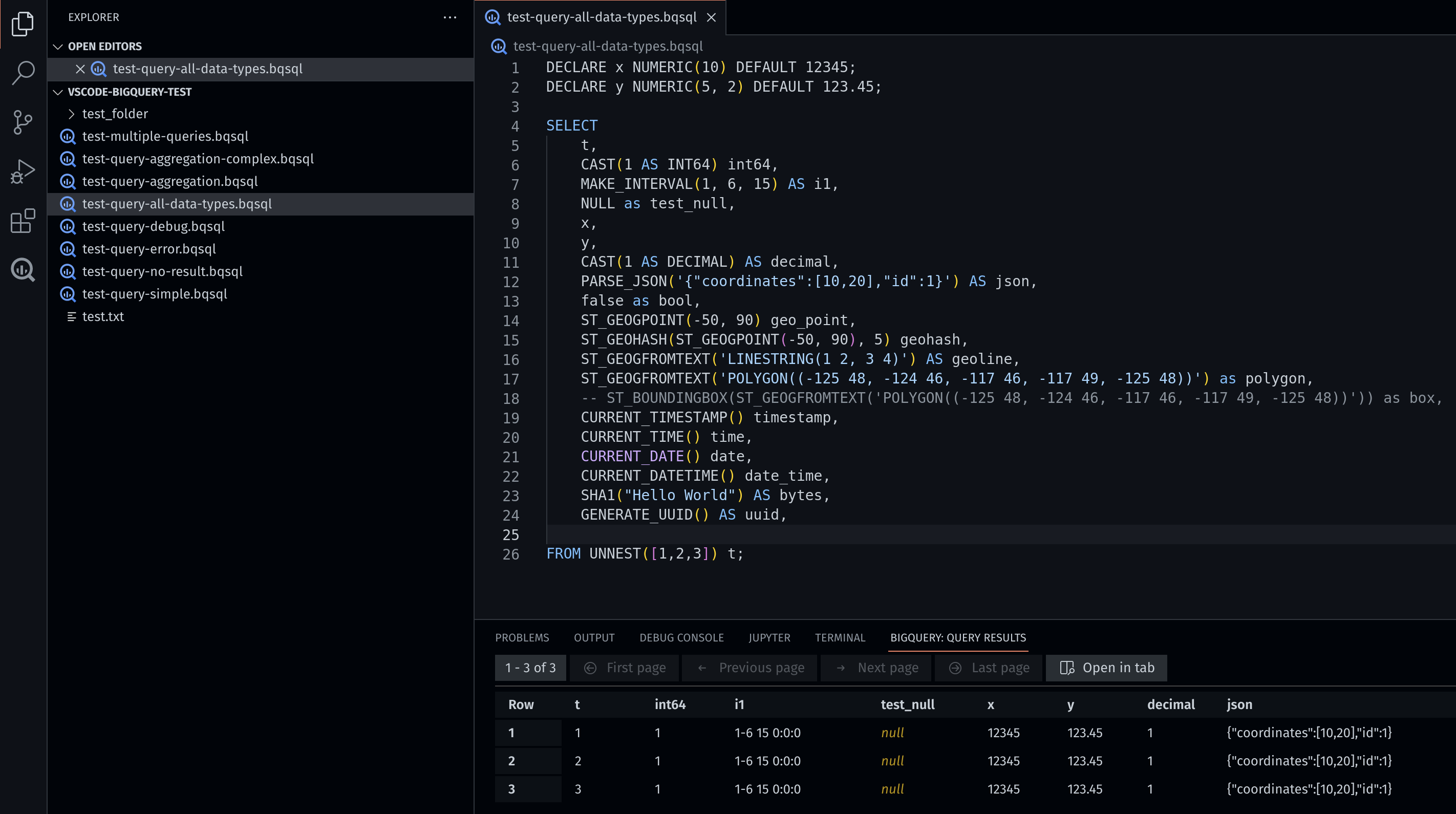
Query results appear in the bottom panel under Bigquery: Query results. You can open results in a separate tab for side-by-side comparisons.
Syntax Highlighting & Intellisense
The extension provides:
- Syntax highlighting for SQL keywords (SELECT, FROM, WHERE, JOIN, CASE, WHEN, etc.)
- Intellisense/autocomplete for SQL keywords and BigQuery functions
- Grammar injection for
.sql files (syntax highlighting works automatically)
Real-time Query Validation
Queries are validated as you type. Errors are underlined in the editor:
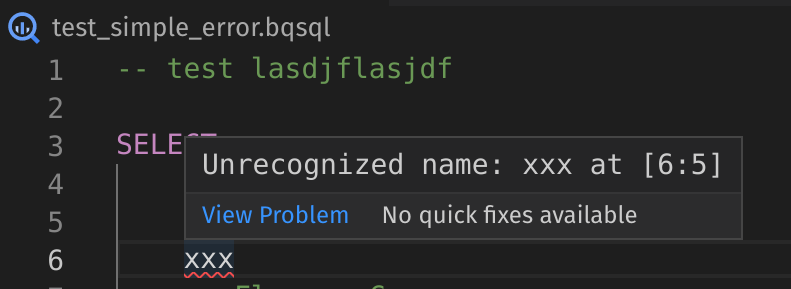
Valid queries show the estimated bytes in the status bar:

Query History
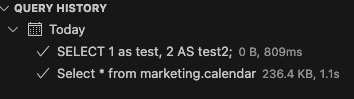
All executed queries are saved to the History panel in the BigQuery sidebar.
Each history entry shows:
- Query preview text
- Execution timestamp
- Bytes processed and duration
- Success/error status
Right-click actions:
- Re-run - Execute the query again
- Copy - Copy query text to clipboard
- Delete - Remove from history
Use the clear button to remove all history entries.
Cost Estimator
The status bar shows real-time cost estimates based on BigQuery's dry-run feature:
- Estimated bytes to be processed
- Estimated cost in USD (configurable, default $6.25/TB)
Configure the cost per TB in settings via vscode-bigquery.costPerTB. Set to 0 to hide cost estimates:

Table Schema Hover
Hover over any table name in your SQL query to see schema information:
- Column names and data types
- Column descriptions (if available)
- Partitioning and clustering information
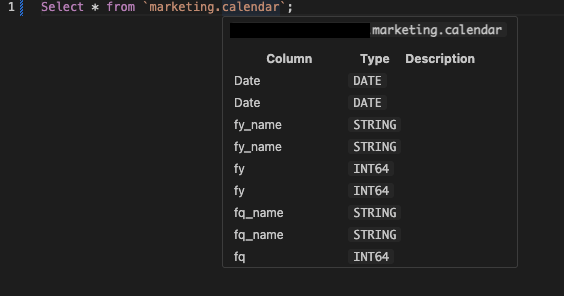
The schema is cached after first fetch for faster subsequent lookups.
Supported Locations
Schema hover works for tables in:
FROM clauses - FROM project.dataset.tableJOIN clauses - JOIN project.dataset.table, LEFT JOIN, RIGHT JOIN, INNER JOIN, CROSS JOIN, FULL JOIN- CTE references - When you reference a CTE name (e.g.,
FROM my_cte), the hover shows the columns defined in that CTE's SELECT clause
Data Lineage
Visualize data flow in your queries. Click the lineage button  in the editor title bar or run
 BigQuery: Show Data Lineage.
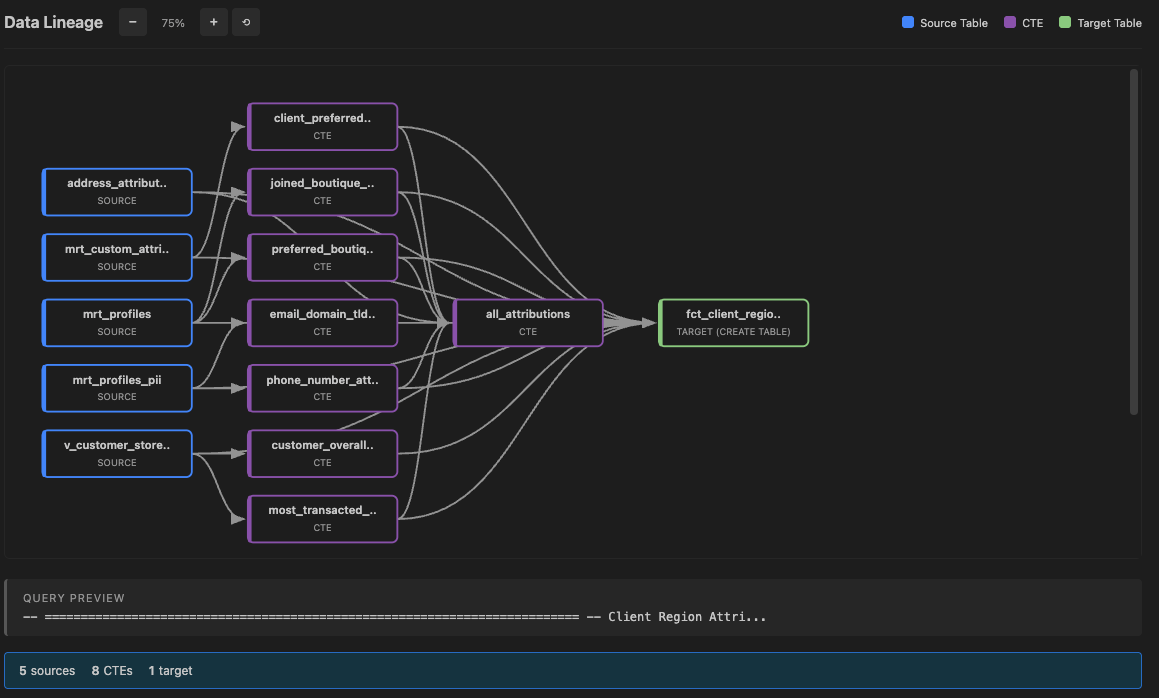
The lineage graph shows:
- Source tables (blue) - Tables your query reads from
- CTEs (purple) - Common Table Expressions as intermediate nodes
- Target tables (green) - Tables your query writes to (INSERT, CREATE, MERGE, etc.)
Features:
- CTE Support - CTEs are shown as intermediate nodes between sources and targets
- Layered DAG Layout - Nodes are arranged left-to-right based on data flow
- Curved Connections - Bezier curves show relationships between nodes
- Statement Type Badges - Target nodes show the operation type
Format your BigQuery SQL queries with Shift+Alt+F or by running BigQuery: Format SQL.
Configuration options:
- Keyword Case (
vscode-bigquery.formatKeywordCase): upper, lower, or preserve
- Indent Style (
vscode-bigquery.formatIndentStyle): standard, tabularLeft, or tabularRight
- Leading Commas (
vscode-bigquery.formatLeadingCommas): Enable/disable leading comma style
Export Options
Download CSV
After running a query, download results as CSV from the result grid toolbar.

- Supports multiline content
- No row limit (be mindful of large result sets)
- Does not support nested complex objects
Copy to Clipboard
Copy results in CSV format with a configurable size limit (default 1MB). Configure via vscode-bigquery.clipboardSizeLimitKb.
Download JSONL
Download results in JSONL format from the result grid toolbar.

Send to Pub/Sub
Publish query results to Google Cloud Pub/Sub (one message per row).
Requirements:
- A column named
data of type STRING or JSON
- Optional: A column named
attributes of type RECORD
Example query:
SELECT
    (
    SELECT AS STRUCT
        "my test test" AS test,
        "amazing data type" AS data_type
    ) AS attributes,

    TO_JSON(t) AS data

FROM `dataset.table` t

Enter the topic name in the format: projects/<project_id>/topics/<topic_name>

Settings
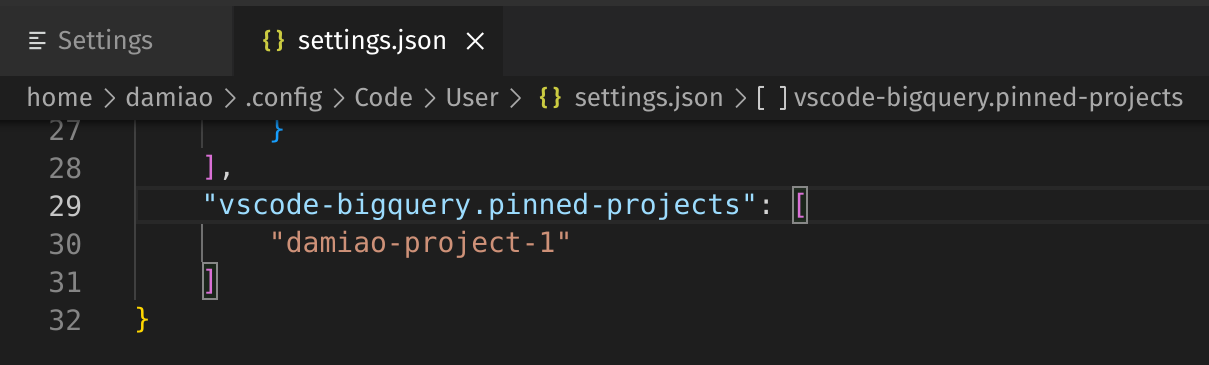
Pin a Project
Pin projects to keep them at the top of the explorer tree.
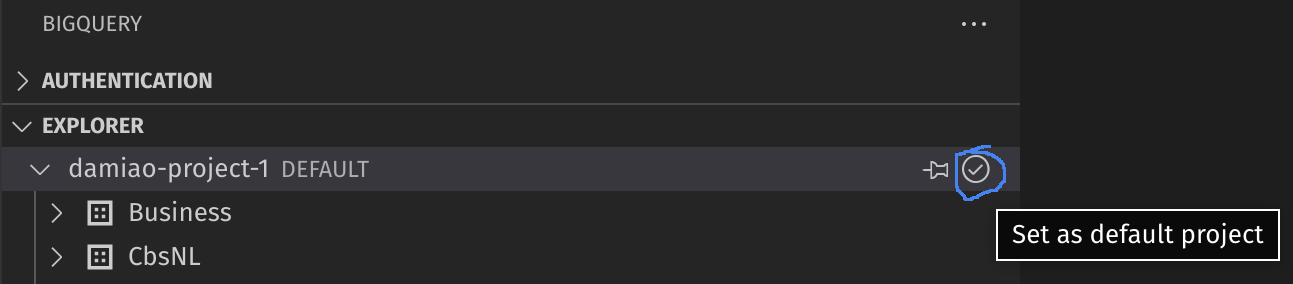
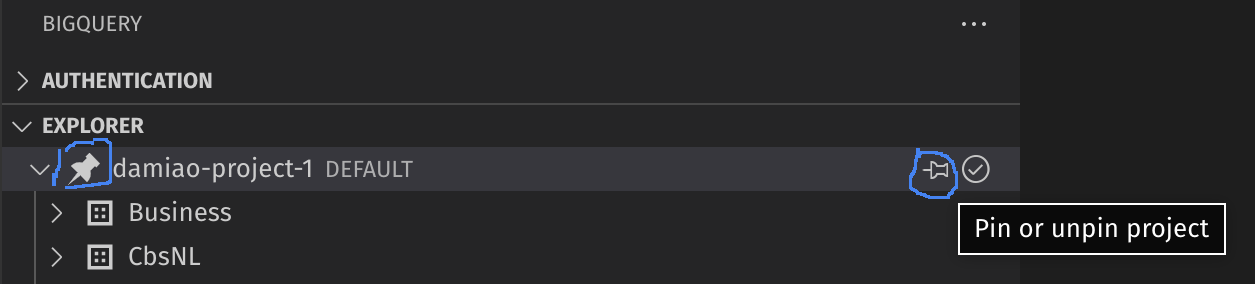
Pinned projects are stored in settings:
Add GCP Projects
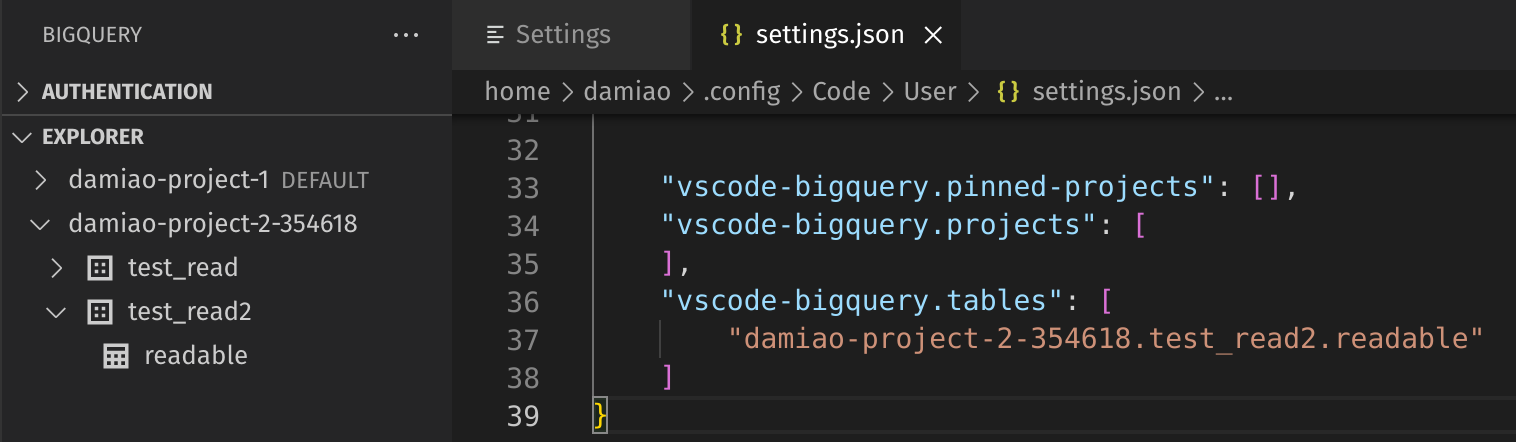
For cases where you only have read permissions at the dataset level (not project level), force a project to be listed:
Setting: vscode-bigquery.projects
Add BigQuery Tables
When permission is granted only at the table level:
Setting: vscode-bigquery.tables
Associate .sql Files
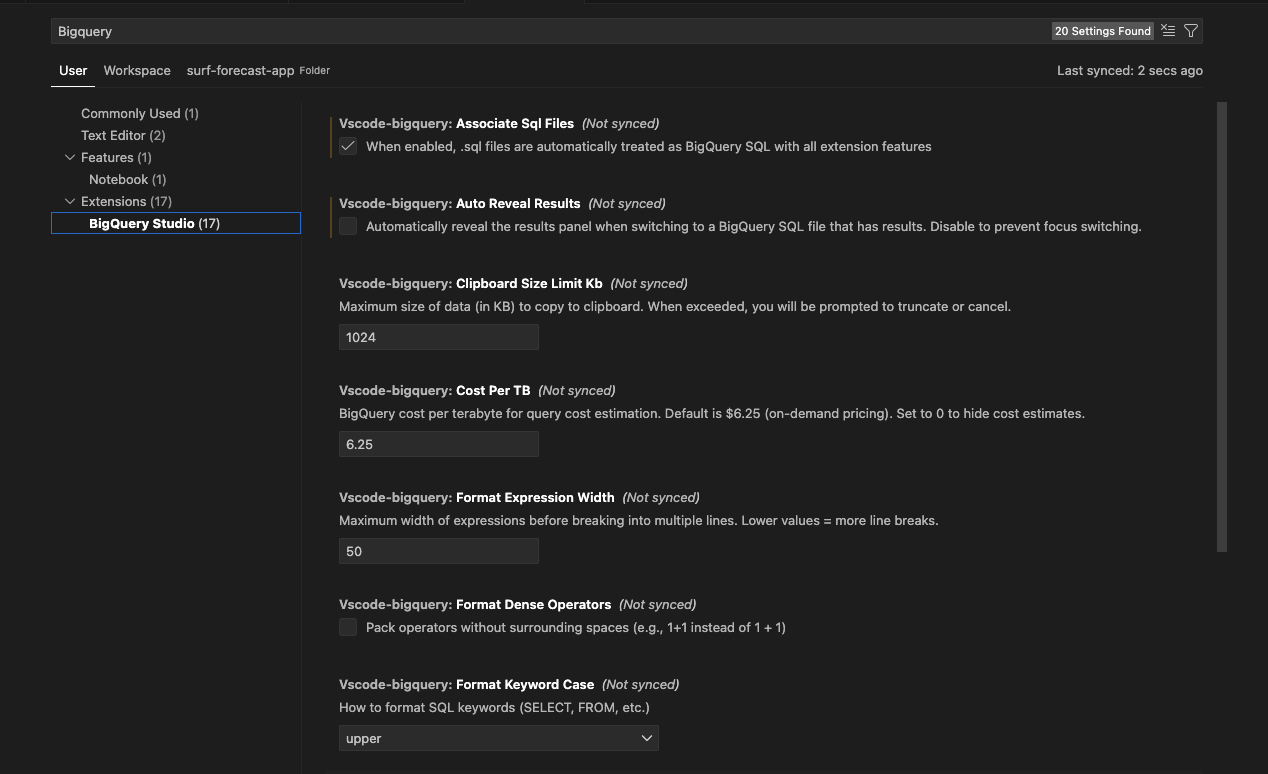
Enable BigQuery features for all .sql files:
Setting: vscode-bigquery.associateSqlFiles
Configuration Reference
| Setting |
Type |
Default |
Description |
vscode-bigquery.pinned-projects |
array |
[] |
Pinned GCP project IDs |
vscode-bigquery.projects |
array |
[] |
Additional GCP project IDs to list |
vscode-bigquery.tables |
array |
[] |
Table IDs to list directly |
vscode-bigquery.associateSqlFiles |
boolean |
false |
Treat .sql files as BigQuery SQL |
vscode-bigquery.clipboardSizeLimitKb |
number |
1024 |
Clipboard copy size limit (KB) |
vscode-bigquery.costPerTB |
number |
6.25 |
Cost per TB for estimates ($) |
vscode-bigquery.formatKeywordCase |
string |
upper |
Keyword case: upper, lower, preserve |
vscode-bigquery.formatIndentStyle |
string |
standard |
Indent style: standard, tabularLeft, tabularRight |
vscode-bigquery.formatLeadingCommas |
boolean |
true |
Use leading comma style |
Access settings via:
Troubleshooting
Query results panel not opening
Sometimes after installation, the BigQuery: Run query command doesn't open the results panel. Restart VS Code to resolve this.
Authentication issues
Ensure the gcloud CLI is properly installed and you've run gcloud auth login successfully.
Missing projects or datasets
If you have limited permissions, add projects or tables manually via settings.
Report a Bug
Please file an issue with as much detail as possible at GitHub Issues.
Contributing
Contributions are welcome! Please feel free to submit a Pull Request.
License
This project is a fork of bstruct/vscode-bigquery.

